By Yang · 全職奶爸 · Tradovate Web SuperDOM
Open the Tradovate DOM from New (+), select SuperDOM, then choose your account, contract and order quantity. The ladder combines a price display with order entry. Its gear menu controls mouse behavior, display settings and the default stop type. Check those settings before using the ladder to submit an order.
The important distinction is what each number represents. Bid and ask depth describe displayed orders waiting in the book. Executed volume describes trades that have already occurred. Your working orders and open position belong to your account. They can appear near the same price without being the same information.
This guide uses the SuperDOM in Tradovate Web. The examples show interface controls and constructed scenarios, rather than a live trading signal. Use an independent practice environment to learn the controls. A prop evaluation is still subject to that firm's rules and fees even when its trading capital is simulated.
Set the account, contract and quantity first
The account selector determines where an instruction is sent. Confirm the selected account before adding an order-entry module. A familiar chart layout can remain on screen after switching accounts, so the chart's appearance is a poor substitute for reading the account selector.
Use New (+) to add SuperDOM. Select a dated futures contract and verify its exchange and expiry. The contract in the ladder should match the contract you intend to trade. When you compare the ladder with a chart or Time & Sales, check all three symbols rather than assuming their names remain linked.
Set Quantity explicitly. A saved layout can retain an earlier quantity, including the size used for a different instrument. Moving from MNQ to NQ while keeping the same number of contracts multiplies dollar exposure by ten for the same point movement.
The Rithmic vs Tradovate guide explains the connection choice for supported prop firm accounts. The instructions here concern Tradovate's own web ladder. Rithmic credentials issued for another application do not become a Tradovate login simply because both applications offer a DOM.
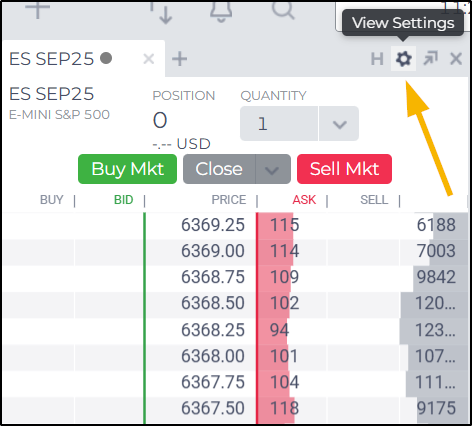
Look at Position alongside Quantity. Position describes the existing exposure; Quantity describes the next submitted instruction. For example, a position of two contracts and an order quantity of one are compatible values. They answer different questions, and changing the order quantity does not resize the position already held.
Check the mouse configuration before clicking a price
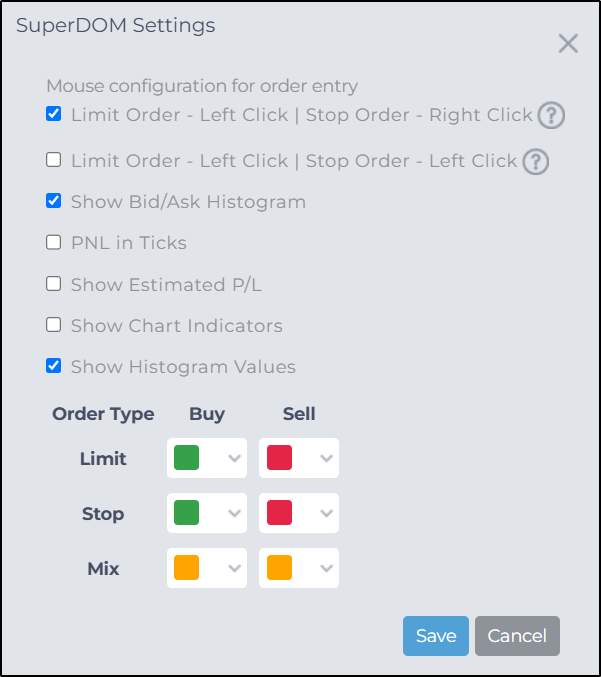
Open the gear at the top right of SuperDOM, then Settings. The settings window includes Mouse configuration for order entry. In the configuration that assigns limit orders to left-click and stop orders to right-click, the mouse button is part of the order instruction.
For that configuration, the documented passive limit examples are a buy below the current market on the buy side and a sell above the market on the sell side. The stop workflow uses the stop-click action at the chosen trigger price. Confirm the side, order type and price shown by the order confirmation instead of learning by trial and error on a funded account.
The settings image also shows a configuration where both order types use left-click. If that configuration is selected, a tutorial for the separate left/right buttons is not enough to determine what your click will do. Read the selected mode and practise its confirmation behavior before using it.
Order confirmations create a useful pause while learning. Review the account, contract, buy or sell side, quantity and price. If confirmations are disabled, the click can submit immediately. Decide which interaction you want before positioning the pointer over a fast-moving ladder.
Keep one ladder on one contract while learning the controls. For a chart-based starting point, the Tradovate beginner tutorial covers workspace setup, TP/SL and the difference between working orders and positions. A second chart, different timeframe or additional indicator is easy to add later. The first practical goal is to tell an accepted working order from an open position and to identify the control that cancels or exits each one.
Read depth, traded volume and your orders separately
The central price column gives the ladder its structure. Bid-side quantities show displayed buying interest; ask-side quantities show displayed selling interest. The best bid is the highest currently displayed bid, and the best ask is the lowest displayed offer. Their difference is the spread.
Suppose a constructed ladder shows 12 contracts bid at one price and 18 offered one tick higher. These are displayed resting quantities at that moment. They do not tell you how many contracts will remain when your order arrives. Other participants can trade, modify or cancel before your instruction is processed.
A larger displayed offer also does not establish the number of distinct sellers. One participant can submit several orders, and multiple participants can contribute to a quantity. Depth is a changing view of available displayed liquidity, rather than a promise that price will reverse at that row.
Executed volume answers another question: how much trading has taken place. A histogram can accumulate activity over its configured period, while the current book continues to change. A large historical bar can remain after the resting orders at that price have disappeared.
Your own working instruction is separate again. A displayed buy order may be yours, part of the wider book or a combined representation. Inspect the order marker and the account's order list. The account's order record identifies whether an instruction is accepted, working, filled, cancelled or rejected.
This is why the number's label matters more than its location alone. Changing a display setting can add histogram values, projected profit or account information around the price column. Read the active columns and toggles before interpreting an unfamiliar number as traded volume.
Level 2 data and display features solve different problems
Level 1 can provide the best bid and ask without the deeper rows of the order book. Level 2 provides additional depth for the subscribed market. A working chart therefore does not prove that your account includes the depth you expect to see in SuperDOM.
Check the market-data subscription attached to the actual login and environment. A broker account, trial and prop firm account can have different access. The same application name on two accounts does not establish identical exchange subscriptions or professional-status pricing.
The official SuperDOM settings reference ties Show Bid / Ask Histogram to Order Flow+ access. That display entitlement is another check alongside exchange depth. Turning a setting on changes the view of available information; it cannot add a missing exchange subscription.
For missing depth, establish what is missing. Is the entire contract blank, are only the best quotes present, or are prices updating while a histogram option is unavailable? Record the selected contract, environment and exact symptom. That description is more useful to support than a general report that the DOM is broken.
For Tradeify's account-specific connection choices, see the Tradeify account guide. Use the current provider's instructions to confirm what can be added to your own account. Software features and data subscriptions should stay separate when comparing the cost of a platform route.
Choose settings that keep order information readable
Start with the account, current contract, Position and Quantity visible. Then decide whether to display profit and loss in ticks or dollars. PNL in Ticks changes the display unit; it does not change the contract's tick size, the position size or the account's loss limit.
Show Estimated P / L can display the projected result at different ladder prices. Treat it as a scenario based on the selected position and displayed price. An estimate does not include a guarantee that a closing instruction will fill at the row you are viewing.
Choose order colors with enough contrast to distinguish working limits from protective stops. Keep the meaning consistent when opening another ladder. A color preference helps recognition, but the order type, side and quantity remain the details to verify.
Show Chart Indicators can help identify chart information displayed in the DOM. When several charts use the same contract at different timeframes, check which chart supplies the indicator. A moving average calculated on one timeframe should not be mistaken for the equivalent value from another.
| Setting or control | What to check | What remains separate |
|---|---|---|
| Quantity | Contracts on the next instruction | Existing Position |
| PNL in Ticks | Profit/loss display unit | Dollar value per tick |
| Estimated P/L | Projected result at a ladder price | Actual exit fill and costs |
| Bid/Ask Histogram | Display option and feature access | Exchange depth subscription |
| Mouse configuration | What each click requests | Default stop type and confirmations |
Market, limit and stop instructions on the ladder
Buy Mkt and Sell Mkt request market orders for the selected quantity. The resulting fill depends on the liquidity available when the instruction reaches the market. A market order prioritizes execution over a specified maximum or minimum price.
A passive buy limit below the market waits for an execution at its limit or better. A passive sell limit above the market does the same on the other side. Reaching the displayed price does not guarantee your order fills: queue position, available quantity and subsequent market activity still matter.
A stop uses a trigger condition. A buy stop is generally placed above the current market, while a sell stop is generally below it. With a stop-market type, triggering produces a market instruction. With a stop-limit type, triggering produces a limit instruction, which can remain unfilled.
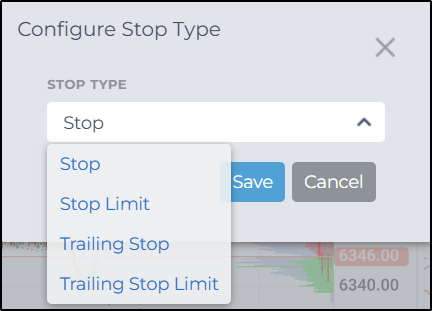
Use the gear menu's Stop Type control to inspect the default. The listed choices include Stop, Stop Limit, Trailing Stop and Trailing Stop Limit. Selecting a trailing type changes how its trigger can move; it does not turn a stop-limit into a guaranteed market exit.
Consider a constructed sell stop-limit with a trigger at 20,000 and a sell limit at 19,999. If the trigger is reached while available bids have already moved to 19,998, the limit instruction cannot sell below its permitted price. The original position can therefore remain open. Returning to the limit price also does not promise an immediate fill; the order still needs an executable match.
Compare that with a stop-market instruction at the same trigger. It seeks a market exit after activation, with the actual fill dependent on available liquidity. The limit version constrains price, while the market version accepts price uncertainty. Select the behavior you intend and inspect the confirmation; a protective label alone does not explain that tradeoff.
Read back the confirmation in a separate practice environment. If you intended a sell stop but the confirmation says sell limit, cancel the confirmation and inspect the mouse mode, side and stop-type selection. Learning the difference at this stage is much cheaper than discovering an unintended order after submission.
Translate ticks and points into dollars
The CME contract specifications give NQ and MNQ a minimum price increment of 0.25 index points. Their dollar values differ: one NQ tick is $5 per contract, while one MNQ tick is $0.50. Four ticks equal one index point for both contracts.
As a constructed example, a 20-point distance is 80 ticks. At one contract, that represents $400 for NQ or $40 for MNQ before commissions and slippage. At three contracts, it represents $1,200 or $120. A familiar-looking distance on the ladder can therefore have a very different effect on the account.
Use the worksheet to compare a price distance and quantity. It calculates the nominal movement value only. It does not select a position size for you, account for the firm's drawdown method or establish how much can safely be risked.
NQ / MNQ movement-value worksheet
If your ATM template is expressed in ticks, enter the tick distance rather than a point distance with the same number. For example, 20 ticks is five points, while 20 points is 80 ticks. Check the template's Show In setting before copying a number from a chart annotation.
The MNQ vs NQ comparison develops that contract-size difference. Keep the instrument, quantity and protective distance together when comparing two setups. Changing only one field can leave the overall dollar exposure very different from the intended example.
Brackets require their own order-state checks
An ATM bracket describes protective exit instructions associated with an entry. Select the intended template and verify its unit, quantity allocation, target and stop behavior before sending the entry. A template name alone does not explain what it will do.
Once an entry fills in your practice environment, inspect the resulting working orders. Check the protective side, quantities and prices against the remaining position. Repeat after a partial exit or manual modification. A saved stop value and an accepted working stop are different stages of the process.
Tradovate's platform feature page describes server-held brackets, including multiple targets and stop levels. Keep the exact account and trading mode in scope. Native Group Trade has its own limitations, so a single-account bracket demonstration should not be treated as proof that the same protection operates across a group.
The prop firm copy trading guide explains the account and copier checks. Use it when one manual action will affect more than one account. The DOM setup here focuses on a selected account and instrument, so the trader can verify the instruction's scope.
Close, cancel and reverse request different actions
The official SuperDOM reference describes Close as submitting market offsets and cancelling working orders for the instrument currently loaded in that module. If the module displays MNQ and another contract also has an open position, read the other contract's position separately.
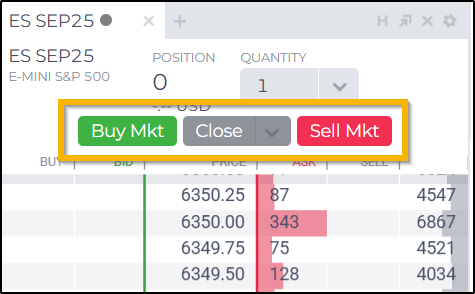
Consider a constructed account holding one MNQ position and one ES position. Closing the MNQ instrument from its DOM does not establish that ES is flat. Check the positions list across the account, then verify remaining working orders for each instrument.
Cancelling a working order removes that instruction when the cancellation is accepted. It does not offset a filled position. This matters when a trader cancels all working instructions while still holding exposure: the position can remain open after its previously working stop is removed.
Reversing an existing position requests exposure in the opposite direction. That can involve closing the original position and establishing a new one. It is not a neutral substitute for Close, and its new quantity needs to fit the account's limits.
After an exit request, read the returned state. A pending market offset is not a confirmed flat position. If an instruction is rejected or the connection fails, inspect the account through its supported route and contact the provider when needed. Keep the exact rejection and timestamp for that conversation.
Practise a complete sequence and save the workspace
Use a dedicated practice account with no connection to paid evaluations or live capital for the learning sequence. Start flat with no working orders. Confirm the account, dated contract, quantity, mouse mode, stop type and confirmation behavior.
Observe a practice working instruction and its cancellation, then inspect the resulting order status. When practising an entry with a bracket, inspect the fill and both protective instructions. Test a modification and an exit, then reconcile the final position and working-order list.
The aim is to understand the returned states rather than to generate a profit. A quiet market or an unavailable simulation feed can prevent a planned fill. Record what actually happened and continue with the controls that can be checked, without treating an unfilled test as a completed bracket test.
Save the workspace after arranging the modules and display preferences. At the next launch, repeat the account, contract and quantity checks. A restored layout preserves convenience; the account's status, current contract and data access can still have changed.

Compare HDP discounts
Lucid 30% · Tradeify 30% · TPT 50%.
See current offers ↗Eligible partner plans only.
Tradovate DOM questions
How do I open the Tradovate DOM?
In Tradovate Web, open New (+), select SuperDOM and choose the account, dated contract and quantity before using its order controls.
Where are SuperDOM settings?
Open the gear menu at the top right of the module and select Settings. The separate Stop Type menu controls the default stop behavior.
Does left-click always place a limit order?
Read Mouse configuration for order entry. The left-limit/right-stop instructions here apply to that selected mode; another mouse configuration can change the click behavior.
Are the depth numbers executed volume?
Displayed bid and ask depth describe resting orders at that moment. Executed-volume displays describe activity that has already traded. Read the active column's label and settings.
Do I need Level 2 to see more depth?
Additional book depth requires the appropriate subscription for the market and account. A working chart or best bid/ask does not establish full depth access.
Why is the histogram unavailable?
The official settings reference ties the Bid/Ask Histogram option to Order Flow+ access. Check that feature entitlement separately from the exchange-data subscription.
Does a limit fill when the market touches its price?
A touch does not guarantee a fill. Available quantity, queue position and subsequent trading determine whether the order receives an execution.
What is the default SuperDOM stop type?
The official Web guide identifies Stop Market as the default. Check the gear menu's Stop Type selection because the saved setting can be different.
How many ticks are in one NQ or MNQ point?
Four ticks equal one index point. NQ is $5 per tick per contract; MNQ is $0.50 per tick per contract, before trading costs.
Does PNL in Ticks change my position risk?
It changes the display unit. Your contract, position size, price movement and account rules still determine the financial result.
Does Close flatten every instrument?
The SuperDOM Close control is scoped to the instrument currently loaded in that module. Inspect the account's other instruments and remaining working orders separately.
Does cancelling an order close my position?
No. An accepted cancellation removes the working instruction. An existing position needs an offsetting execution or an appropriate exit action.
Can I assume brackets work in Group Trade?
Check Group Trade's specific restrictions. A bracket operating on a single account does not establish protection across a native group or third-party copier.
Is this the Tradovate mobile procedure?
This guide uses the Tradovate Web SuperDOM. The mobile application's navigation and order controls need their own instructions.