Futures platform setup · Trade copiers
Tradesyncer copies trades from a selected leader account to followers across supported trading connections. Its plans start at $49 per month, and copying runs in the cloud. The decision depends on your connections, account capacity and order workflow: a follower may receive a working bracket, protective orders after entry, or market orders triggered by the leader's fills.
Suppose your leader has a stop-loss on its chart. You open the follower and see no working stop. That can be the documented behavior of Market Execution Only rather than an unexplained missing line. In that mode, the follower waits for the leader's exit fill and then receives a market exit. You need to know which behavior you selected before putting the copier into use.
I have found Tradesyncer's setup and adjustments convenient, and copying has felt smooth in my use. That experience does not establish a fill-speed benchmark. Each receiving account still has its own orders, connection and execution results.
Start with the prop firm copy-trading guide to check ownership and firm permissions. Then work through the software configuration with the actual services your accounts use.
What Tradesyncer does, and where it runs
You choose one of your accounts as the leader, select followers and set their copying parameters. You continue placing trades through the supported platform connected to that leader. Tradesyncer watches the corresponding order events and sends the supported activity to followers.
The cloud service runs without a local copier application or your own VPS. You can manage it through a browser on a Mac, Windows computer or phone. The trading platform used to place the original order can have its own device requirements. A Windows-only charting application remains a separate part of the setup.
A healthy dashboard connection is one condition for copying. The receiving service must also accept the order, the account must permit the quantity, and the chosen mode must support the order structure. During fast markets, different accounts can fill at different prices. Treat copying as several executions to reconcile.
The platform also includes a journal, reporting, risk controls and a prop firm tracker. Those features can reduce the number of places you manage your records, but they do not change the firm's drawdown, payout or position-limit rules. Use the firm-specific guide for those decisions.
Choose a plan by connections and participating accounts
A Connection is a broker, platform or data-service login that can contain multiple trading accounts. List the actual logins you need, then identify which accounts will participate in copying. Three accounts under one Tradovate login and three separate Tradovate logins are different subscription requirements.
| Plan | Monthly billing | Yearly: displayed monthly equivalent | Published capacity |
|---|---|---|---|
| Basic | $49/month | $34/month, billed yearly | 2 connections; up to 10 accounts per connection, 20 total |
| Pro | $99/month | $69/month, billed yearly | 4 connections; up to 20 accounts per connection, 80 total |
| Flex | $149/month | $104/month, billed yearly | Unlimited connections; 120 accounts included, additional capacity available |
These are USD prices. Yearly prices in the table are the monthly equivalents displayed by Tradesyncer. Check the annual charge, tax, renewal date and any additional capacity in the checkout summary. An annual plan collects an annual payment; the displayed monthly equivalent describes the cost over that period.
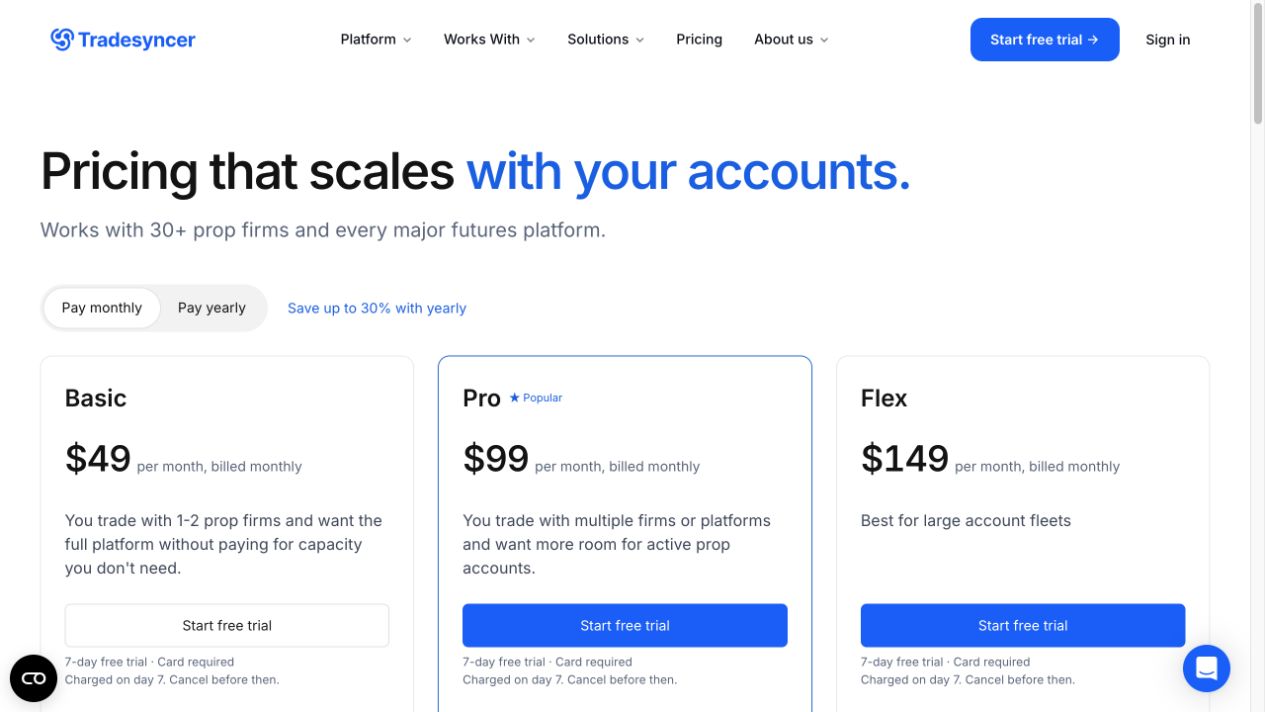
For example, two connections with five participating accounts each fit inside Basic's published limits. Three separate connections exceed its connection allowance even if each uses only one account. Likewise, a single connection needing more than ten participating accounts requires a different capacity arrangement despite having only one login.
Account visibility and copying participation are separate controls. Under Connections, the Connection Details page lists the associated accounts. Tradesyncer's account-management instructions say that a plan slot is used when an account is set to follow in the Cockpit. Check the active Follow settings and the app's capacity display before choosing a subscription.
All plans offer a seven-day trial requiring a card. The current public pricing page says the card is charged on day seven unless cancelled beforehand. Check the exact first billing date shown for your subscription and complete cancellation before that date if you decide to stop. Starting a trial creates a recurring billing arrangement.
Save 30% with HDP
Copy the code and apply it at checkout.
Check eligible plans, billing cycle and the total at checkout.
Affiliate link. I may earn a commission.
Connect the trading service your account actually uses
Open Connections in Tradesyncer, then choose + Connection. Give it a recognizable Name, such as Practice Tradovate. The name is only a label. Choose the provider and environment from the actual trading credentials or opening instructions.
For Tradovate, select Demo for the corresponding simulated environment or Live for an actual live connection. Press Continue to open Tradovate's OAuth login. Complete authorization with the intended Tradovate login and return to Tradesyncer. Confirm that the expected accounts appear before assigning a leader.
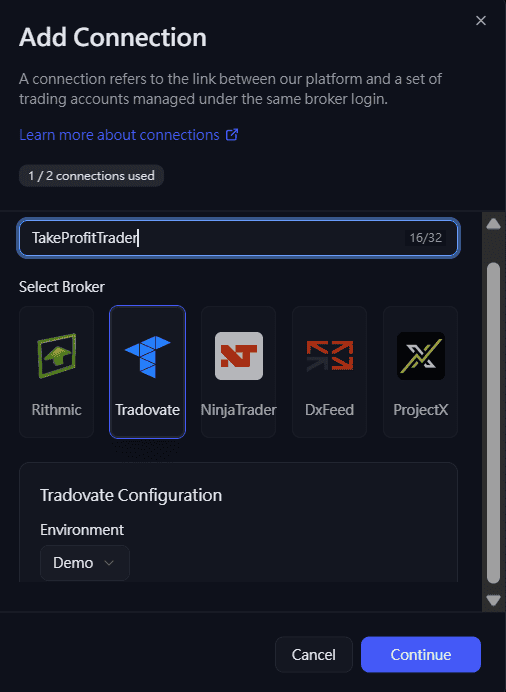
For Rithmic, the Broker/System must match the system assigned by the trading provider. A firm's dedicated system can apply to simulated accounts too. Enter the Rithmic credentials in the connection form and confirm the resulting account list. The member-dashboard email and trading username can be different.
dxFeed uses its own connection credentials. Hyperprop also has a documented connection path using the Hyperprop login email and API key. Follow the instructions for that particular service. A trading application shown in a compatibility list is not necessarily the credential provider selected in this form.
ProjectX requires setup on the ProjectX side, including eligible API access, platform linking and a platform-specific API key. Before connecting it to a cloud copier, check the trading firm's requirements for where orders originate. Topstep's requirement is covered below; a working connection alone does not establish permission.
Broker authorization and API keys can grant trading access. Keep keys private and review the access being granted before connecting. Tradesyncer states that data is encrypted in transit and at rest; that statement does not verify a particular account's authorization or order behavior. Revoke permissions at the original service when that connection is no longer needed.
The official connection instructions describe the provider-specific fields. When the connection returns, compare the account names and environment with your intended list. Resolve a missing or unexpected account before turning on Follow.
Set the leader, followers and contract month
Go to Cockpit and use Set leader or Change leader to select the actual trading account that will drive the group. Identify its connection as well as its account label. Two similarly named accounts can belong to different environments or logins.
Enable Follow individually for the accounts that should copy it. A connection can be healthy while Follow is off. Keep the initial rehearsal to one leader and one follower in an independent practice environment so that each order can be checked clearly.
Use + Contract to find the instrument and the actual contract month, then select Import. Confirm the expiry in the trading platform as well. A continuous chart symbol provides a charting view; the receiving account still needs the correct tradable contract.
For several groups, open Manage groups in the Cockpit and choose New group. The wizard asks for Name, Leader and Followers, with Continue between the steps. Group names allow up to 16 characters. A follower belongs to one group at a time, and unassigned accounts remain outside the group's copying selection.
To revise an existing group, open its menu, choose Edit, adjust the Leader or Followers tab and press Save changes. Group membership does not replace the account's Ratio and Cross settings. Review those for every instrument being copied.
Use TradingView through the selected leader account
TradingView can be the place you enter the original trade. Select and connect the supported trading service in TradingView, then choose the same account that you designated as leader in Tradesyncer. The copier follows activity on that trading account.
For a Tradovate-based workflow, the account selector in TradingView matters as much as the chart symbol. A connected broker panel showing a different subaccount will send the original order to that subaccount. Verify the leader selection before testing the follower.
This workflow starts from an order placed on the leader. A TradingView alert, webhook or Pine strategy is a separate automation question. Check the documentation for the specific automation product if that is what you need; connecting a supported trading account does not itself configure an alert-to-order system.
Firm-specific setup is covered in Lucid Trading copy trading and Tradeify copy trading. Use the instructions corresponding to your actual connection and account stage.
Set Ratio and Cross for each contract month
Ratio changes the copied quantity for a follower. A leader entry of two contracts with Ratio 2 corresponds to four contracts on that follower. A leader quantity of two with Ratio 0.5 corresponds to one. Begin with combinations that produce a whole number and check the received quantity.
The setting is attached to the account and specific contract, including its month. Changing the setting for one NQ expiry does not also configure ES or the next NQ expiry. Other contracts use the default 1x ratio, so rollover is a reason to inspect the settings again.
Cross Order changes between supported E-mini and Micro E-mini pairs, including NQ/MNQ, ES/MES and YM/MYM. The documented example maps one NQ contract to one MNQ contract with Cross enabled. This changes the instrument as well as the cash exposure associated with that contract.
Use the MNQ vs NQ comparison when checking instrument values and position size. A numerical quantity match does not establish equal money risk. Inspect the received symbol, expiry, quantity and stop distance together.
For a constructed example, suppose the leader trades two NQ contracts, while a follower uses Cross to receive MNQ and Ratio 0.5 to target one contract. Check the result under the MNQ contract tab. An unchanged NQ tab on the follower does not show whether the intended Micro position was received.
Check which bracket orders reach the follower
A supported bracket consists of an entry, one take-profit and one stop-loss. Tradesyncer's current order documentation distinguishes Full bracket, Entry first, Separate orders and Market Execution. The connection pair determines the normal path; Market Execution Only overrides it.
Between Tradovate, dxFeed and Hyperprop, the Full bracket path copies the entry and its attached protection immediately. With Rithmic involved, apart from the ProjectX cases, the entry goes first and the protective orders follow after it fills. There is a period before that fill when those follower protective orders have not yet been sent.
A ProjectX leader copying to a non-ProjectX follower uses Separate orders: after entry fills, target and stop are separate orders, and Tradesyncer cancels the other when one fills. ProjectX followers use Market Execution for brackets. Their entry and exit are market orders triggered by the leader's fills, with no working TP or SL on the follower.
The worksheet below describes that documented single-bracket path. Select the actual services used by the leader and follower. It does not connect to an account, check permissions, place an order or confirm an execution.
Single-bracket path worksheet
Scope: one entry with one TP and one SL. Select the account connection, not the charting interface. Technical order behavior does not establish a firm's permission to use the route.
For example, Tradovate to Tradovate with Market Execution Only off uses Full bracket. Keep the same accounts and enable that mode, and the follower instead copies fills with market orders. The same connection names can therefore produce a different order workflow.
With brackets, ProjectX followers retain Market Execution behavior even when the general switch is off. Ordinary orders without attached TP and SL have their own normal copying behavior; the bracket worksheet does not classify every order type.
If protection is added to an unfilled entry afterward, Tradovate and dxFeed followers receive it once the entry fills. Check the current bracket-order instructions for this distinction before interpreting a pending-order display.
Market Execution and Follower Protection do different jobs
In Cockpit, open Trading Controls with the gear icon to inspect Market Execution and Follower Protection. Market Execution Only copies executed fills. Pending limits and stops on the leader are not first copied as working orders on the follower.
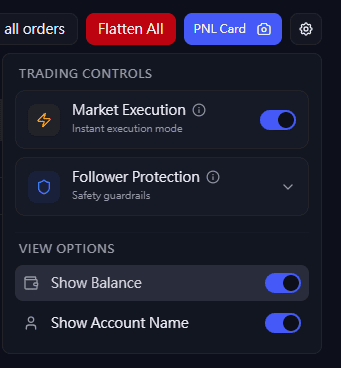
When the leader receives a partial fill, that fill triggers the corresponding market-order copying action. The receiving account can fill at a different price, and its broker can reject an order. Reducing pending-order modification traffic does not remove the need to inspect actual execution results.
Consider a constructed sequence: the leader has an unfilled limit entry, then enters, then its stop fills. In Market Execution Only, the follower has no copied pending entry during the first stage. At the leader's entry fill it receives a market entry; at the leader's stop fill it receives a market exit. The follower's own list does not contain a separately resting stop from that copied bracket.
Follower Protection addresses divergence. If the leader becomes flat while a follower remains in a position, the documented response pauses copying, flattens accounts on that symbol, including the leader, and cancels their open orders. If a follower opens a position while the leader is flat, it closes that follower's position.
The documented delay is configurable from one to three seconds. This feature depends on detection, connection and execution. After a divergence, inspect the receiving account's orders and positions before resuming. The feature's name does not establish that an independent stop was already resting at the broker.
Match the order type to the supported controls
The supported bracket has one target and one stop. Multi-bracket strategies, stop-limit orders, automatic trailing stops, auto breakeven and auto trail are outside the current supported list. A regular stop-market used for a stop-loss is a different order type from a stop-limit.
Manual changes to supported stops can be copied. Moving a buy stop from above the last traded price to below it to force an immediate fill is a separate limitation. Keep the change valid for the order type and confirm it in each receiving account.
Heavy modification and cancellation activity across many followers can also encounter Tradovate API limits. The copier's documentation lists a 5,000-request hourly cap and describes penalty-ticket restrictions. Pausing to investigate a rate-limit message is more useful than repeatedly deleting and reconnecting the same login.
If one follower rejects an order, read its own Orders or History message. Maximum quantity, permitted position size, margin, permissions and connectivity can differ between accounts. One follower receiving the trade successfully does not confirm another follower's state.
For an unresolved copying problem, contact Tradesyncer through its website chat with the provider name, time of the issue and relevant order-history details. Hide account identifiers, email addresses and API keys in shared screenshots. Describe which account failed and which entry, change or exit did not arrive.
Set risk controls and check the firm's execution rules
Tradesyncer's daily loss and daily profit controls use net P&L, including realized P&L, open P&L, fees and commissions. The session starts at 6:00 PM ET. Reaching the configured threshold closes positions and cancels orders; Lockout must be configured separately.
The risk-control documentation describes DLL and DPT being applied to Tradovate accounts through its API. Lockout controls Tradesyncer's copying and still permits manual trading through the original platform. Check the actual receiving service rather than assuming that every risk feature has identical broker-level behavior.
Topstep requires all order activity to originate from the trader's personal device and prohibits remote-server order transmission. Its TopstepX API rules also exclude Live Funded accounts from that API. For a TopstepX workflow, select an execution arrangement that satisfies those requirements before authorizing a tool.
A ProjectX connector describes technical compatibility. It does not override a firm's order-origin requirement. The setup here does not authorize cloud copying for Topstep accounts. Other firms also require their own ownership, account-stage and permitted-tool checks.
For TPT accounts, use the Take Profit Trader copy-trading guide to review its approved-tool scope and follower sizing. The account's own risk rules continue to apply alongside software controls.
Rehearse the whole entry and exit in a practice environment
Use an independent practice setup that permits the intended copier. Begin with no positions or working orders, one leader, one follower, a known contract month and Ratio 1. Check the connection, Follow setting and intended mode before sending a simulated order.
Inspect the receiving symbol, direction and quantity after entry. For a bracket, check whether the actual working orders match the path you selected. Test a supported modification and cancellation, then a complete exit. Use order history to distinguish an instruction sent, an order accepted and a fill.
In Market Execution Only, an unfilled leader limit is not a test of follower copying: the copying event is the fill. Verify that sequence in the practice environment. With a working-bracket path, inspect the follower's pending entry and protective orders at the appropriate stage.
Keep one copying system responsible for the followers. Turn off overlapping native groups or another third-party copier before using the new route. Two systems reacting to one leader can generate extra orders and conflicting exits.
When finishing, use the intended account or group flatten control, then verify every relevant contract and account. Confirm that Positions is zero and no unwanted working Orders remain. Individual flatten controls have a contract scope; review other imported contracts too.
Once those states are confirmed, turn off Follow or disable the group as intended. Turning off copying is a configuration change. Check the existing positions and orders separately instead of treating a disabled switch as proof that they were closed.
As you add accounts, rehearse repeated entries, modifications and cancellations at your normal pace. More follower orders mean more requests, including requests subject to the trading platform's API limits. A delayed or missed exit can leave one follower long when the leader turns short. Let fills, cancellations and position updates complete, then inspect every account before reversing.
Cloud execution removes the need to keep a local copier running, while fill prices and P&L can still differ across accounts. Compare the result under your actual account count and workflow. Also add up group risk: five accounts each risking a planned $100 expose the group to $500, plus fees and slippage.
Cancellation and choosing whether to keep it
To cancel, open Settings → Subscriptions and choose Cancel Subscription. Confirm the cancellation status and next billing information. Paid access continues through the current paid period. Cancellation and a refund are separate outcomes; past payments are not automatically refunded.
Keep the subscription if its supported connections and order workflow solve a recurring task for you. For accounts under one login, check the platform's own grouping tools against the same entry, bracket and exit requirements. For a mixed setup, the cross-connection workflow can justify the additional software cost.

Compare HDP discounts
Lucid 30% · Tradeify 30% · TPT 50%.
See current offers ↗Eligible partner plans only.
Tradesyncer questions
How much does Tradesyncer cost?
Monthly plans are Basic $49, Pro $99 and Flex $149 USD. Yearly billing displays lower monthly equivalents. Check the annual checkout total and any additional capacity.
Does Basic allow only two trading accounts?
Its limit is two connections, with up to ten accounts per connection. Check the Cockpit's participating accounts and capacity display.
Is Tradesyncer free to use?
It is a subscription service with a card-required seven-day trial. The current pricing page says the card is charged on day seven unless cancelled beforehand.
Can I use Tradesyncer on a Mac or phone?
You can manage the cloud service in a browser. The platform placing the original order can have separate device and operating-system requirements.
Do I connect TradingView as a separate broker login?
Select the supported trading service and the correct leader account. TradingView can be the interface placing orders on that account.
Does this setup automate TradingView alerts?
The workflow described copies orders placed on a leader account. Alert-to-order or webhook automation needs its own supported configuration.
Why is my follower missing a stop-loss?
Check the bracket path and Market Execution setting. Market Execution followers copy exit fills as market orders and have no separately working TP or SL from that bracket.
Does ProjectX copy brackets normally when Market Execution is off?
ProjectX followers still use Market Execution for brackets. Ordinary orders without attached TP and SL are a separate case.
Can I copy multiple targets and an automatic trailing stop?
The current supported bracket is one target and one stop. Multi-brackets, automatic trailing and auto breakeven are outside the supported list.
Does Ratio apply to every instrument?
It applies to the selected account and contract month. Check each instrument and configure the new contract again after rollover.
Does Cross Order keep the same money risk?
It maps between supported E-mini and Micro instruments. Check the received quantity, contract value and stop distance to determine money risk.
Will Follower Protection guarantee identical positions?
It responds to specified divergence conditions and depends on detection and execution. Reconcile actual positions and working orders after a mismatch.
Can TopstepX orders be sent through a remote cloud server?
Topstep requires order activity from your personal device and prohibits remote-server order transmission. A vendor connector does not change that rule.
Does reaching the daily loss limit automatically enable Lockout?
It closes positions and cancels orders under the documented control. Configure Lockout separately; its copying restriction does not prevent manual trading at the original platform.
Does turning off Follow close existing trades?
Verify and close the intended positions and working orders before stopping copying. A Follow switch shows copying participation, not a confirmed flat position.
How do I cancel my Tradesyncer subscription?
Open Settings → Subscriptions → Cancel Subscription, then check the saved cancellation status and billing information. Paid access continues to the end of the paid period.