
To connect Tradeify to TradingView, use the Tradovate connection selected for your Tradeify account. Complete the first Tradovate login on a computer, then open TradingView’s Trade menu, choose Tradovate and select Demo for an evaluation or simulated funded account. Enter the trading credentials shown at the top of your Tradeify dashboard.
A visible chart is only one part of that setup. Your account must also have access to the integration, the appropriate market data and permission to trade the selected contract. The TradingView pricing guide separates chart subscriptions from exchange data and broker permissions. If an order seems missing, check its status in Tradovate before sending another one. A chart that has stopped updating does not establish that the first order failed.
This guide covers Tradeify Futures evaluations and simulated funded accounts using Tradovate. Rithmic, WealthCharts and genuine Elite Live onboarding have different connection requirements. For the plans themselves, start with the Tradeify review and account-rule comparison. Here, the goal is to connect the account you already have and identify which part of a failed connection needs attention.
Find the next check for your Tradeify connection
Use the information shown in your account details and the exact symptom on screen. If you have submitted an order and cannot confirm its status, choose Yes or Not sure for the outstanding-order question. For a compatible simulated account, that check takes priority over generic suggestions to reconnect or try again.
The checker works entirely on this page. It does not inspect a trading account, retrieve credentials, cancel orders or determine whether an account is safe to trade. Its result tells you where to look next. Keep the actual platform’s account selector, Orders and Positions available for verification.
Check the broker connection and the credentials first
Tradeify offers Tradovate, Rithmic and WealthCharts connections. These are the routes attached to an account, rather than interchangeable names for a login screen. The standalone TradingView broker connection requires Tradovate. A Rithmic account using Tradesea can display TradingView-powered charts inside Tradesea, but that does not give it a Tradovate login for the separate TradingView website.
Your broker choice is made at checkout. Tradeify permits movement between supported front ends on the same connection; changing the broker requires purchasing another account. Confirm the existing route before troubleshooting a password. The Rithmic versus Tradovate guide covers that buying decision and the supported-platform boundaries.
| What you see | What to check | Next action |
|---|---|---|
| Tradeify customer dashboard | Your Tradeify website login | Open the account details and locate the issued trading credentials. |
| Tradovate sign-in or its TradingView login | Tradeify-issued Tradovate username and password | Match the exact capitalization and select the correct environment. |
| “Fund Your Account” | Whether you used a personal retail Tradovate identity | Return to the platform credentials supplied through Tradeify. |
| TradingView chart login | Your separate TradingView account | Sign in to TradingView, then connect the Tradovate broker separately. |
| Rithmic or WealthCharts credentials | The connection purchased for this account | Use its supported platform; these credentials do not connect through Tradovate. |
Tradeify places the trading username and password at the top of its dashboard. They differ from a retail Tradovate login you may have created yourself. Funding that retail account does not attach your Tradeify evaluation to it. A “Fund Your Account” screen is therefore a reason to verify the identity and environment, rather than a prompt to deposit money for this setup.
If a pasted password fails, compare it with the issued value, including its first character, capitalization and any extra spaces. Tradeify flags cases where the first character changes case during pasting. Preserve the supplied password exactly; adding or changing a character without comparing it with the issued value creates a different password.
Finish the first Tradovate login in a desktop browser
Use a desktop or laptop browser for the first login at trader.tradovate.com. This is where the initial market-data certification and agreements appear. A TradingView login or a mobile app session does not replace that first browser setup.
- Log in with the Tradovate credentials issued through Tradeify.
- Review the Market Data Subscriber Certification and choose the status that accurately describes you under its definitions. Scroll inside the agreement window if its controls are below the visible area.
- Personally review and sign the required subscriber agreement, using the name required by the signature field. Complete the platform agreement if prompted.
- Choose Simulation for an evaluation or simulated funded account.
- Open the account selector and confirm that the intended Tradeify account is present and active.
Non-professional status depends on eligibility. Select it when you qualify; resolve an uncertain classification with the provider before signing. Tradovate states that the status becomes locked after signing and only the account provider can change it. Treat the certification as an agreement about your circumstances, rather than a setting to click through for cheaper data.
Use accurate identity and address information. If a valid name or postal code is rejected by the form, send the error to the provider for help completing it correctly. For a name containing accents or other special characters, Tradovate specifically directs prop users to their account provider to update the record before signing.
A missing account at this point is an account-access issue before it is a TradingView issue. Check the Tradeify dashboard for an active account and the correct platform route. Tradeify notes that broker access may be restricted when there are no active accounts. If every account has failed, a working customer-dashboard login does not establish current trading-platform access.
Connect Tradovate inside TradingView and select Demo
After confirming the account in Tradovate, sign in to your own TradingView account and open a chart. The broker entry is the Trade button at the top right. It opens the broker list, where you can search for Tradovate.
- Click Trade, find Tradovate and open its broker card.
- Select Demo for the Tradeify evaluation or simulated funded account.
- Click Connect and continue to the Tradovate sign-in screen.
- Enter the Tradeify-issued Tradovate username and password.
- When the broker panel opens, select the intended Tradeify account and compare its identifier with your account information.
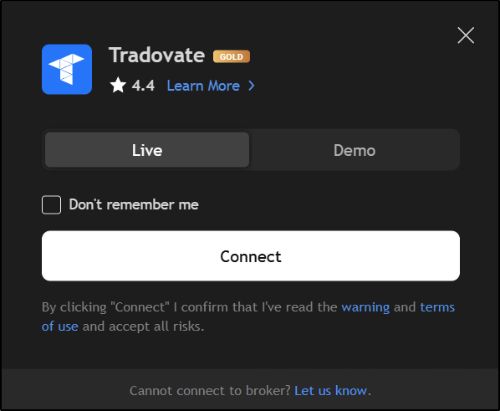
“Funded” can describe a simulated account eligible for real payouts. That wording alone does not make Live the correct connection tab. An evaluation or simulated funded account follows the Demo route here. A genuine Elite Live account needs its own onboarding and connection instructions from the company.
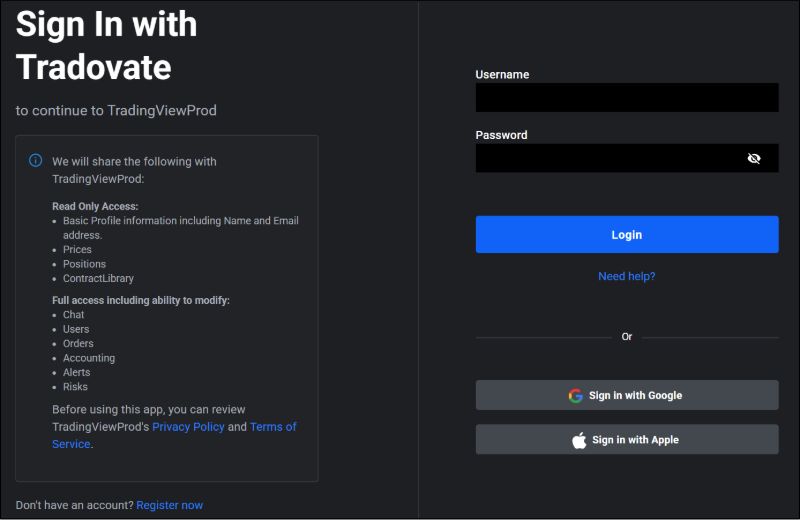
TradingView’s Paper Trading simulator is a separate broker selection. If the panel says Paper Trading, you are using that simulator rather than the Tradeify Tradovate account. If several Tradeify accounts share the platform login, verify the selected account each time you reconnect or switch devices.
You can verify these labels without submitting an order. Read the account, environment, contract and ticket settings first. A successful connection establishes access to the broker panel; it does not establish that every available symbol is permitted or that every order type behaves as you expect.
Check free access and the TradingView entitlement
Tradeify includes the TradingView integration at no additional integration charge. Its setup guide describes checking Application Settings → Add-On Tools in Tradovate and activating the free TradingView integration where that control is available.
Prop-account access is managed by the provider. Tradovate’s current prop-account instructions say these users do not buy the standalone retail TradingView add-on. If the account shows the integration as active, continue with the broker connection. If access is missing, the free activation control is unavailable or the screen leads to a paid retail add-on, ask Tradeify to verify the credentials and entitlement for the account.
A missing Buy option can be expected with prop credentials. Likewise, purchasing a separate TradingView chart plan does not enable an integration that the account provider has not supplied. Identify whether the problem is broker access, market data or a chart feature before choosing a paid service.
Software access and per-trade costs also remain separate. The Tradeify commission table and trading-cost calculator shows how contract quantity affects trading fees. Free integration does not remove those execution costs or make an optional data package part of the account purchase.
Fix missing data and restore an accidentally cancelled feed
Tradeify includes Level 1 CME Group data with its eligible account setup and required agreements. On the Tradovate route, optional Level 2 depth and EUREX data are separate subscriptions purchased through Tradovate. The company’s current platform list does not offer those upgrades on its Rithmic or WealthCharts routes.
For a newly completed data agreement, Tradeify says access can occasionally take up to 90 minutes to activate. If the initial feed is still unavailable beyond that window, contact Tradeify with the setup time and the affected platform. This is a first-activation check, not a reason to wait through an unknown working order.
Tradovate separately advises allowing up to five minutes for a new or updated market-data subscription to take effect. That applies to a subscription change. It should not be used as a universal activation promise for a new account, a missing account or a provider-managed entitlement.
If data worked before and then disappeared, check whether a subscription was cancelled or changed. Tradeify specifically warns about a “Real-Time Data” entry that can look like a personal charge: it says the included basic fee is paid by Tradeify. If you cancelled that feed, contact Tradeify to restore it. Repeatedly purchasing other data packages does not resolve the cancelled provider entitlement.
An expired optional subscription can also affect the basic feed. Describe what changed and whether data is absent in Tradovate itself, TradingView or both. Verify the same contract and exchange, current market hours and any delayed-data warning. A different contract month or a closed market can produce a different symptom from a missing entitlement.
Separate quote updates from order execution
Tradeify describes free TradingView chart updates as approximately once every five seconds. That is a chart refresh interval. It is different from an exchange-data delay warning and from the time between submitting an order and receiving its status.
These observations answer different questions. A delayed-data label concerns the age or entitlement of the displayed feed. A chart refreshing in steps concerns how often the interface displays updates. An order marked rejected, working, cancelled or filled concerns an instruction sent to the account.
A paid chart plan can change TradingView features and update behavior, but it does not prove a particular order-execution speed. There is no measured latency guarantee in this guide. If execution timing matters to your method, evaluate the supported connection and order controls in a separate practice environment before relying on them in a paid evaluation.
When comparing two screens, match the account, exchange, exact symbol, contract month and time. Different providers can build bars differently. A small visual chart difference alone is not proof that a market order failed or that an account has the wrong balance.
Reconcile a missing order before sending another one
If you clicked an order control and the result is unclear, open Tradovate and verify the same account’s Orders and Positions. Read the actual order status, contract, direction, quantity and any fill information. Check whether the order was accepted, remains working, was rejected, was cancelled or has filled.
A hypothetical example: you intend to buy one MNQ contract. You submit the entry, lose the visible acknowledgment and submit another one. If both instructions are accepted and filled, the resulting entry quantity is two contracts rather than one. A slow or disconnected chart did not make the first instruction disappear.
The same reasoning applies to an apparently missing cancellation or exit. Reconcile what is actually working and what is actually held before another instruction. An order being absent from one disconnected panel is not a confirmed cancellation. Preserve the error text and time so support can investigate the sequence.
If the order was rejected, read its rejection reason. Tradeify lists unsupported products, position limits, drawdown breaches, applicable daily loss restrictions and custom risk settings among possible causes. A rejection from a risk restriction is different from an authentication failure. Resolve the applicable condition rather than trying to make another interface bypass it.
Keep the company’s risk figures in view. TradingView chart P&L does not show every figure used to enforce a prop account’s loss limit. The EOD drawdown explanation separates when a trailing floor updates from the requirement to remain above the existing floor during trading.
Check contract mapping and bracket-order limits
TradingView supports eligible CME and EUREX 1! continuous futures through the front contract identified in the order ticket. Read that contract and expiry. A 2! continuous contract is intended for analysis and is not tradable through this feature.
Account permission still applies. A symbol appearing in TradingView search does not mean your Tradeify account can trade it. Verify the supported product, exchange access and current contract month. For EUREX, the Tradovate route and relevant subscription are separate requirements. A similarly named index, stock or forex feed is not the corresponding futures order destination.
For Tradovate bracket orders, prepare the attached take-profit and stop-loss with the parent entry through TradingView’s Order Panel. The chart’s quick Buy/Sell buttons do not provide the same bracket-entry workflow. Review the entry and attached exits together before submission.
The integration does not support adding an attached bracket after the parent has been submitted or to an already running position. Levels that were attached with the parent can be modified on the chart. Check actual working orders after any modification; a drawn chart level is not, by itself, an active exit order.
Connect on mobile and keep copying separate
Finish the initial Tradovate certification in a computer browser first. In TradingView’s mobile app, open Chart, tap Trade and select the broker card. Use Show All or the broker search when necessary, then apply the appropriate Tradovate Demo connection and issued credentials.
Check the account selector after connecting on the phone. If you are switching devices during a connection problem, first reconcile any outstanding orders and positions. Multiple sessions can create conflicts; opening more sessions is not a substitute for identifying the active account and its current state.
Tradovate Group Trade is available in its supported web and desktop applications, not inside TradingView, mobile apps or NinjaTrader Desktop. A working manual TradingView connection also does not establish that an external API, webhook bridge or automation service is available to the same account.
For that separate decision, use the prop-firm copy-trading guide. Confirm the account route, allowed account ownership and the firm’s rules for the actual tool. Each account retains its own quantity and loss limits even when another tool sends matching orders.
Handle API limits and contact the right support team
“API LIMIT HIT” or “Too Many Requests” is a specific platform condition. Tradovate explains that placing or modifying one order across several grouped accounts counts as a separate request for each account. Group trading and order-management strategies can therefore generate many requests.
For that message, contact Tradovate support through its support channel to have the limit reviewed. Repeated reconnects or order retries are not a reliable reset procedure. If an instruction was already sent, reconcile its status before making another attempt.
Contact Tradeify for issued credentials, account availability, data entitlement, rule questions and account-specific order investigations. Contact TradingView for its charting interface or platform controls. Tradovate handles its platform’s technical connection and API-limit support. A provider account issue may need Tradeify to initiate an investigation with Tradovate.
Tradeify’s policy says it does not repair or adjust accounts affected by TradingView or other third-party software malfunctions. Keep this limitation in mind when choosing an execution workflow. Maintaining another way to inspect the account is useful, but it does not guarantee compensation, uninterrupted access or a particular fill.
Send the exact error text, platform and browser versions, time with time zone, account stage and the checks already completed through the appropriate private support channel. Include an account identifier there only when needed. Keep passwords, unrelated accounts and personal information out of screenshots.

Save 30% on Tradeify
Select, Growth & Lightning. Ends Oct 31, 11:59 p.m. EST.
Get 30% off ↗Compare plansPartner link · Plan terms apply.
Tradeify TradingView FAQ
Can I connect Tradeify to TradingView?
Yes, with a Tradeify account using the Tradovate connection. Complete the first Tradovate computer-browser setup, then connect Tradovate inside TradingView with the issued platform credentials and the appropriate Demo environment for simulated accounts.
Can a Tradeify Rithmic or WealthCharts account use this connection?
No. The standalone TradingView integration uses Tradovate. Tradesea’s embedded TradingView-powered charts are a separate interface. Tradeify requires another account purchase to change the broker connection attached to an account.
Where is my Tradeify TradingView login password?
Use the Tradovate trading username and password supplied at the top of the Tradeify dashboard. The Tradeify website login, your TradingView login and a personal retail Tradovate identity serve different purposes.
Why does Tradovate say “Fund Your Account”?
Tradeify identifies this as a sign that a personal Tradovate account was used instead of the provider-issued login. Check the credentials supplied by Tradeify and select Simulation for an evaluation or simulated funded account.
Do I select Demo for a Tradeify simulated funded account?
Yes. Evaluations and simulated funded accounts use Demo in TradingView’s Tradovate connection. A genuine Elite Live account follows its separate onboarding; the word funded alone does not determine the connection environment.
Is Tradeify’s TradingView integration free?
Tradeify includes the integration without an additional integration charge. TradingView chart-plan features, optional data subscriptions and trading commissions are separate. A chart subscription does not grant a missing provider entitlement.
Should I buy the standalone Tradovate TradingView add-on?
Tradovate says prop and evaluation users do not purchase the standalone retail add-on. Check available free activation or the active status, and ask Tradeify to verify access if the integration is missing or the screen leads to a retail purchase.
Does the free TradingView version delay every order by five seconds?
Tradeify describes approximately five-second chart updates on the free version. That is a quote-update interval, not a fixed order-latency measurement. Verify an order’s actual status in the connected account rather than inferring it from chart updates.
What if I cancelled the Real-Time Data subscription?
Tradeify says it pays the included basic Real-Time Data fee shown in Tradovate. If that feed was cancelled or an optional subscription change removed basic access, contact Tradeify to restore the account’s data entitlement.
How long can first-time market-data activation take?
Tradeify says initial data activation can occasionally take up to 90 minutes after the required agreement. Contact it if data remains unavailable beyond that window. This is separate from Tradovate’s five-minute guidance for new or updated data subscriptions.
What should I do if an order does not appear?
Check the same Tradovate account’s Orders and Positions, exact contract and order status before sending another instruction. A missing acknowledgment on one screen does not prove rejection or cancellation; retrying can create duplicate exposure.
Can I trade a 1! continuous futures chart?
Eligible CME and EUREX 1! charts can route to the front contract displayed in the order ticket. Verify the expiry and account permissions. Trading through a 2! continuous contract is not supported by this feature.
Can I add take-profit and stop-loss after entry?
Prepare attached TP/SL orders with the parent entry through TradingView’s Order Panel. The Tradovate integration cannot attach a new bracket to an already submitted parent or open position, but existing attached levels can be modified.
Who handles API LIMIT HIT and third-party platform failures?
Tradovate support handles review of its API request limit. Tradeify handles provider-account issues and states that accounts affected by third-party software malfunctions will not be repaired or adjusted. TradingView support handles its own interface and software issues.