

To connect Take Profit Trader to TradingView, use a TPT account on the CQG/Tradovate route. Activate it in Tradovate, then open TradingView, choose Tradovate and select Demo for the Test/PRO setup. The trading username comes from your TPT subscription details.
There are three logins involved, which is where this gets confusing. Your TPT email opens the company dashboard. Your TradingView login opens your charts. The assigned Tradovate credentials connect the trading account. Keep those jobs separate and most of the setup makes more sense.
If you are still deciding whether the account suits you, the Take Profit Trader review covers the plans, PRO drawdown and withdrawal buffer. This page starts with the platform connection.
Check the data feed before opening TradingView
Open the purchased subscription in your TPT dashboard and check which connection you were issued. CQG uses Tradovate for this route. A Rithmic username belongs to the other connection path; typing it into the Tradovate login does not convert the account.
If you already have a Rithmic subscription, ask TPT about the available account options before purchasing anything else. The platform choice and the data-feed choice are related, but they are not interchangeable labels.
Activate the CQG account in Tradovate
In the TPT dashboard, open the CQG subscription and copy the provided trading credentials. Use them at Tradovate Web. An account awaiting first-use activation can show Pending in TPT.
The first login includes market-data and license agreements. Read the classification questions and answer for your actual circumstances. TPT’s walkthrough shows the Non-Professional route; use that classification only if you qualify. Review the declarations, enter your name as requested, and complete the signing yourself.
TPT describes a 10–15 minute dashboard update after the agreements are signed. Refresh the subscription page to check its status. If it remains Pending beyond the expected update, send support the status and time you completed activation. A new TradingView subscription will not resolve an unfinished TPT activation.
The CQG activation walkthrough shows the first-use forms.
Choose Tradovate and Demo in TradingView
Sign in to TradingView and open Supercharts. Click Trade near the upper-right corner, then select Tradovate from the broker list. In its connection window, choose Demo.
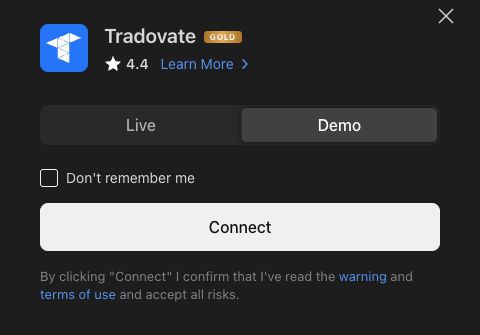
Click Connect, review the broker authorization screen and enter the assigned Tradovate username and password. Use the credentials from the particular TPT subscription you intend to trade. Your company-dashboard email and your TradingView password serve different logins.
After authorization, look beneath the chart for the connected accounts. Match the selected account to the TPT subscription before using the order controls. Test and PRO are simulated stages. If TPT has moved you to PRO+, follow the separate live-account instructions issued for that stage.
The TPT connection walkthrough includes this video:
Check the account, contract and data separately
A chart can update while the order connection is still wrong. Check the broker name and selected account first. TradingView’s own Paper Trading simulator is a separate account, even though it appears in the same broker picker.
Next, confirm the instrument and contract available through the connected broker. The chart you used for analysis and the contract you can trade may not be the same selection. TradingView’s symbol search can filter for symbols supported by the broker.
Finally, check market-data status. A paid charting plan, a broker connection entitlement and exchange data are separate items. TradingView’s Tradovate guidance says the broker-side real-time subscription matters for trading; purchasing a TradingView data package alone does not supply that permission.
For the chart controls themselves, see the TradingView tutorial. For connecting directly in the other interface, the Tradovate guide gives the surrounding platform context. Those walkthroughs are in Traditional Chinese.
When the connection fails, start with the visible state
| What you see | What to check next |
|---|---|
| TPT subscription says Pending | Complete the initial Tradovate setup, then refresh the TPT subscription status. |
| Username or password rejected | Reopen the correct subscription’s assigned credentials. Confirm the CQG route and Demo environment. |
| “Not entitled” error | Check the TradingView add-on entitlement in Tradovate. Ask TPT to confirm it for the issued account if it remains unavailable. |
| Connected, but the intended account is absent | Compare the selected broker login with the subscription you opened in TPT. Give support the exact account-selection problem. |
| Non-tradable symbol or missing quotes | Check a broker-supported instrument and the broker’s data entitlement. Separate this from the charting plan. |
For the specific entitlement message, TradingView points to Settings → Add-on in Tradovate. Check whether the TradingView entitlement is enabled before making another purchase. If the issued TPT account needs an account-side change, ask TPT to resolve it.
Send support the exact error text, the selected environment and whether the same assigned login works in Tradovate. Share private identifiers only through the company’s support channel; keep passwords out of screenshots. This gives support something specific to investigate instead of a general “TradingView does not work.”
What is free, and what changes after connecting?
TPT lists TradingView Basic as usable for free during the Test. Basic has charting limits and does not provide the fastest data-update flow. An optional paid TradingView plan is a separate purchase, as are any applicable data or platform upgrades. Check the item actually being offered before paying.
The connection gives you another interface for the same TPT account. Its trading rules still apply. In PRO, TPT requires manual execution and prohibits automated bot or algorithm trading. Use this connection for manual trading; setting up an alert-to-order webhook is a different activity.
Keep the account’s loss allowance and permitted trading times in view, whatever chart layout you prefer. The trading tools directory helps with software choices; the TPT review above remains the place for account and payout rules.
Take Profit Trader TradingView FAQ
Can Take Profit Trader connect to TradingView?
Yes. The direct setup uses the CQG/Tradovate connection. Confirm that connection on your TPT subscription.
Which password goes into the Tradovate login?
The assigned trading password shown with your TPT CQG subscription, paired with its assigned username.
Do I choose Demo or Live?
The TPT Test/PRO walkthrough uses Demo. Follow the live-account instructions separately if you have been moved to PRO+.
Is TradingView Paper Trading my TPT account?
No. It is TradingView’s separate simulator. Select Tradovate and then check the connected TPT account.
Can I enter Rithmic credentials here?
Use a CQG/Tradovate account for this direct route. Ask TPT about the available options for an existing Rithmic subscription.
Why does the TPT dashboard still say Pending?
Initial account activation may still need completion or processing. Check the first-use steps and refresh the subscription status.
Must I buy a paid TradingView plan?
TPT permits Basic during the Test. Paid charting features and any other applicable charges are separate choices.
What does “not entitled” mean?
It points to connection permission. Check the TradingView add-on in Tradovate and ask TPT to confirm the entitlement for the issued account.
Why can I see a chart but not trade its symbol?
Check broker-supported symbols and broker-side data. Chart visibility alone does not establish order permission.
Does buying TradingView data fix every quote problem?
No. The order interface also depends on the broker’s data and connection. Diagnose that side before purchasing another package.
Can I automate a PRO account with TradingView alerts?
TPT’s PRO rules prohibit automated bot or algorithm trading and require manual execution. This guide covers the manual connection.
What confirms that setup is complete?
The intended TPT account is visible and selected in the connected broker panel, with the appropriate contract and data available. Check these before placing an order.