
Platform setup · Rithmic connections · By Yang
R Trader Pro can reject a correct username and password when the selected System belongs to a different connection. It can also connect successfully while the account or market data you need remains unavailable. Those situations need different checks.
R Trader Pro is Rithmic’s futures trading front end. To connect, use the Rithmic trading credentials issued by your broker or prop firm, select its required System and Gateway, then verify the account, contract and quotes. The Windows desktop program, browser app and mobile app have different access conditions.
Start with the connection attached to your actual account. A password used to buy an evaluation is not automatically the password used to trade it. Keep the provider’s setup page available while entering the fields, particularly if you have accounts from more than one firm.
R Trader Pro download: Windows, web or mobile?
Use the official Rithmic desktop page and select Download for Windows. The desktop program supports 64-bit Windows 10 and Windows 11; Rithmic also lists Windows Server 2016 or later. The Windows installer is an .msi file. Open it on the supported Windows machine and follow the installation prompts.
Get the current installer when a provider’s System is missing from an older desktop build. Reinstalling a copy already saved in Downloads leaves you with the same old software. Keep the workspace and connection details you need before updating, then reopen the program and inspect the server list again.
For a browser, use the official R Trader Pro web login. For a phone or tablet, follow the App Store or Google Play links on Rithmic’s web and mobile page. This keeps the publisher and product clear when similarly named apps appear in a search.
Rithmic explicitly excludes demo users from web and mobile access. A funding evaluator’s simulated account has its own permissions, so ask the provider which client that specific account supports. Having working desktop credentials or seeing a provider in the web System list does not, by itself, establish that the account can use every client.
The desktop application has no native macOS build. A Mac user can consider the browser app when the account permits it, or another provider-approved Rithmic platform for macOS. Apple’s listing also describes compatibility for its iPad app on qualifying Apple Silicon Macs while labelling it as not verified for macOS. That mobile-app compatibility is separate from running the Windows desktop program.
Check the purchased connection before entering credentials
Open the account details in the broker or prop firm dashboard and identify the connection assigned to it. “I have a Tradeify account” is not enough information: that company can supply different platform routes. The account must have Rithmic credentials for R Trader Pro.
For example, Tradeify’s R Trader Pro instructions apply to accounts purchased on its Rithmic route. A Tradovate or WealthCharts login from the same company cannot be used instead. Changing the application on your computer does not change the backend attached to the purchased account.
If you are choosing a route before purchase, the Rithmic versus Tradovate comparison starts with the trading application you want to use. Make that decision before entering payment details. A familiar charting app and an eligible trading connection are separate parts of the setup.
Keep the trading username, the exact System name and the provider’s gateway instructions together. Store the password privately. When you later troubleshoot, compare those details with the selected account rather than borrowing settings from a screenshot made for another firm.
R Trader Pro login settings on Windows
The desktop login layout contains separate Orders and Market Data sections. For the provider’s normal combined connection, keep the required sections enabled and fill their credentials as instructed. Many prop setups use the same issued username and password in both sections, but follow the account’s actual instructions if they differ.
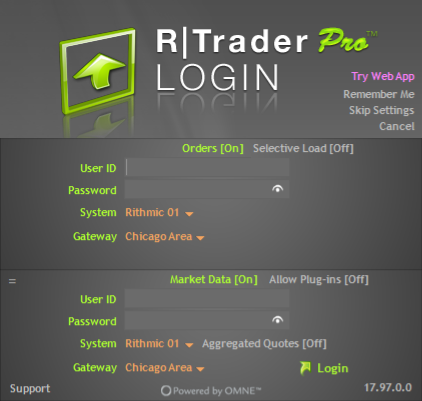
User ID identifies the issued Rithmic login. Password is case-sensitive. Copy each from the account’s credential panel, checking for leading or trailing spaces. If your provider supplies a prefix as part of the username, retain it.
System selects the trading environment. Use the name supplied for this account. Gateway selects a permitted connection location. A nearby city may be available, but some providers require a particular gateway; their instruction takes priority over choosing the closest one.
Check both sections before selecting Login. A correct Orders connection does not repair a different System or an omitted password in Market Data. If you are using the program only to complete an account prerequisite, finish that task and follow the intended platform’s connection instructions afterward.
The web login uses a smaller form: User Id, Password, a System selector and a Gateway selector, followed by Sign In. Its provider list loads dynamically. Wait for the list to populate before deciding that your company is missing. Reloading too quickly can repeatedly show only the initial portion of that list.
System and Gateway examples belong to a provider
These examples explain why two valid setup guides can show different System names. They are account-specific instructions, not a sequence of alternatives to try when a password fails.
| Connection example | System | Gateway and context |
|---|---|---|
| Tradeify Rithmic | Tradeify | Tradeify recommends Chicago Area for most US users and a suitable regional gateway elsewhere. Use the issued Rithmic credentials. |
| TradeDay Rithmic setup | Rithmic Paper Trading | Chicago Area. Its guide includes the TD_ username prefix and specifies its connection switches. |
| Edge Clear demo instructions | Rithmic Paper Trading | Chicago Area. These are broker demo instructions, not a universal funded-account configuration. |
A paper environment can be the correct destination for one provider and the wrong destination for another simulated account. The word “simulation” does not give every account the same server name. Match the entire connection, including the account source and current instructions.
The Tradeify setup guide and TradeDay setup guide give their respective fields. For the TPT route, use the Take Profit Trader Rithmic guide, including its activation and NinjaTrader context, rather than substituting the Tradeify row above.
Complete market-data agreements with the correct status
A first connection can require market-data agreements and subscriber classification. Read the displayed documents and answer according to your actual circumstances. The professional or non-professional choice affects eligibility and fees; it is not simply a preference for the cheaper label.
If you are unsure which classification applies, resolve it with the provider or exchange guidance before submitting. An administrator’s account setup, exchange access and your classification work together. A form left incomplete can prevent data access even when the credentials are valid.
After completing a required agreement, follow the client’s reconnect instructions and check whether the account and exchange data become available. Keep acceptance of a document separate from subscription to an exchange: finishing the paperwork does not mean every market or depth package has been enabled.
The Edge Clear demo guide illustrates this first-login prerequisite. Its broker-demo settings should remain within that context. For an existing prop account, use the forms and entitlements attached to that account.
Verify the account, quotes and order state separately
After authentication, check the account selector. Find the actual account identifier issued by your provider and compare its status with the dashboard. A practice account bundled with the platform is different from the evaluation or funded account you intended to connect.
Next, choose the intended instrument and contract month. Compare the symbol with the exchange and expiry shown in the platform. A saved chart can reopen on an older contract. An old contract that prints infrequently can look like a broken connection when the currently active month is updating normally.
Check the bid, ask and timestamps during the instrument’s trading session. A historical chart that loads successfully is not proof of current streaming quotes. During a scheduled closure or holiday session, lack of new ticks has a different explanation from an account permission error.
Then open Working Orders and Positions. Confirm which account each window displays. If the account is supposed to be unused, the expected starting state is no open position and no working order. If it has been used elsewhere, reconcile the real state before proceeding.
Those checks establish more than a green connection icon. They can identify an account-list problem, a market-data problem or an unresolved order without sending a test trade. A successful login is a useful checkpoint; the account and instrument shown afterward still need your attention.
For a hypothetical example, suppose quotes update on the intended contract but the purchased account is absent. Investigate the account assignment, selected System and provider status. Reinstalling chart studies will not create the missing account. In the reverse case, an account can be visible while the selected exchange or current quotes remain unavailable.
Why the DOM can have prices without full depth
The application’s ability to display a full order book is separate from your account’s data package. Level 1 can supply the best bid and ask, while Level 2 adds depth at other price levels. Your own working orders on a ladder do not establish that you have the rest of the market’s depth.
Tradeify’s current R Trader Pro guide describes its Rithmic accounts as including Level 1 CME data and says Level 2 and EUREX data are not yet available on that route. Other providers can have different packages. Check the specific route before purchasing a platform primarily for depth-based analysis.
Opening a depth window, enabling a display option or installing an order-flow indicator does not purchase the underlying entitlement. Compare the same instrument across windows and inspect the provider’s data permissions. The order flow trading guide explains the different information supplied by footprints, delta and market depth.
Keep the exchange and instrument consistent during a data check. Working quotes for an equity-index future do not prove that gold, crude oil or a European contract is included. If one market works and another does not, that difference is useful evidence for the support request.
Allow Plug-ins and a second platform
Plugin mode matters when another supported application obtains a connection through a running R Trader Pro instance. It introduces a dependency: the first program must be connected with the required plugin setting before the second application can use that route.
For Quantower’s supported RTrader route, configure Allow Plug-ins in R Trader Pro and the corresponding Use RTrader setting in Quantower. Match the credentials and server, and keep R Trader Pro operating for that arrangement. The Quantower Rithmic setup guide covers the direct connection and plugin route separately.
If Quantower is connecting directly, R Trader Pro is not its bridge. Select one arrangement deliberately and follow the provider’s session rules. Opening another direct session with the same login can cause a conflict; a second running application should not automatically be treated as an independent backup connection.
TradeDay’s instructions specify its plugin settings and startup order. Preserve those settings for the TradeDay arrangement. A generic tutorial cannot replace a provider’s explicit requirement with a universal “always on” or “always off” rule.
Change connection modes while you can account for any existing exposure and working orders. Disconnecting the interface you are using to investigate a position creates another dependency to resolve. First establish which application owns the current management task, then make the planned switch and verify the account again.
Plugin mode also differs from copying trades between accounts. Sharing a connection does not configure follower quantities, grant a company’s copying permission or flatten another account. Treat those as separate features with their own setup and result checks.
Know which orders remain managed on the server
Rithmic describes server-side brackets and trailing stops in R Trader Pro. Once the appropriate orders have been accepted by the server, their management does not depend on keeping that particular display connected. An unsubmitted template or a rejected order is a different state.
Inspect the actual accepted orders: account, instrument, side, quantity, order type and price. If the position changes after a partial exit, confirm the remaining protective quantity. Seeing a stop value in a preset is less informative than seeing the corresponding working order attached to the correct account.
Server-side management does not guarantee an execution price. A stop-market exit uses available prices after its trigger; a stop-limit has a limit condition that can leave it unfilled. The risk reward ratio guide separates planned stop risk, actual fills and the net result after costs.
Another application connected to Rithmic can use local strategies, local OCO handling or a local copier. Its dependencies must be checked independently. The fact that R Trader Pro supports a server-side feature does not make every third-party strategy using the same feed server-managed.
At the end of a session, reconcile positions and working orders. Cancelling an unfilled entry does not close a quantity that already filled. Closing a position and cancelling remaining orders are related actions with separate results; confirm both when the intended state is flat with no working orders.
R Trader Pro login failed: check the failing layer
Preserve the exact message and identify when it appears. An authentication error before any account loads needs different evidence from a chart that stops updating after a successful session. Repeatedly changing several fields at once makes it harder to tell which condition caused the failure.
| Observed problem | Check next | Useful evidence |
|---|---|---|
| Login failed or invalid credentials | Issued trading credentials, exact System and account status | Error text, client version and provider; keep the password private |
| Provider absent from System list | Let the list finish loading; check supported client and current build | Full list after loading, operating system and version |
| Gateway timeout | Provider-approved gateway and connectivity | Gateway, timestamp, time zone and whether another approved route works |
| Account visible, quotes unavailable | Market Data, agreements, exchange entitlement, contract and session | Exact symbol, exchange and quote timestamp |
| Quotes visible, intended account missing | Account assignment and current provider status | Selected System and account identifier |
| Second application interrupts the first | Direct-session conflict or supported plugin arrangement | Which applications are connected and which mode each uses |
“Login failed, please contact administrator” does not identify one universal fix. Recopy the issued credentials, check the System and account status, then send the complete error to the provider if those details match. A provider can need to inspect permissions that are not visible in your client.
For a missing web System, allow the application to finish loading its options before taking a screenshot. The initial list can be shorter than the completed list. If the company remains absent, compare the provider’s supported client and instructions. Selecting a different company’s System is not an account migration.
For a timeout, record the selected gateway and the time with its time zone. Use a different gateway only when the provider permits it. If a managed network or security program reports a block, use its normal approval or support process; changing account credentials will not resolve a network-level restriction.
Separate platform cost, exchange data and account fees
A free app listing describes the app’s download price. It does not establish the cost of a broker connection, exchange data, optional depth or the prop account. Ask what the purchased route includes and which charges are recurring before comparing total costs.
Rithmic offers a single 14-day trial for new users through its official trial page. Keep its client restrictions in mind, including the demo restriction on web and mobile. A trial is a limited practice arrangement; it is not the same product as a prop firm evaluation or a live brokerage account.
Match the platform choice with the way you intend to trade. A setup that requires Windows, a particular data package and an always-running bridge has different requirements from a permitted browser-only connection. The preferred interface should fit the account you can actually use.

Compare HDP discounts
Lucid 30% · Tradeify 30% · TPT 50%.
See current offers ↗Eligible partner plans only.
Some links are affiliate links. Yang may receive a commission without an additional charge to you.
Prepare a support request that identifies the problem
Include the application version, operating system, selected System, Gateway, affected account identifier and exact error. Add the time and time zone so support can compare the event with its own logs. Describe whether authentication failed, the account was absent, quotes stopped or an order was rejected.
Mask passwords and unrelated account details in screenshots. Account credentials, activation and billing belong with the broker or prop firm. Installation failures, crashes and platform features belong with Rithmic’s platform support. A concise description of the observed state helps the right team investigate without guessing which connection you meant.
R Trader Pro questions
What is R Trader Pro?
It is Rithmic’s futures trading front end, with market data, charts, order entry and account monitoring. Your broker, FCM or funding evaluator supplies the eligible trading credentials and account permissions.
Where do I download R Trader Pro?
Open Rithmic’s official desktop product page and choose Download for Windows. Use its web and mobile product page for the browser, App Store and Google Play links.
Does R Trader Pro work on Mac?
The desktop program is for Windows. Mac users can use the browser app when their account permits it. Compatibility for an iPad app on some Apple Silicon Macs is separate from a native macOS desktop version.
Can a demo login use the web app?
Rithmic states that demo users cannot access web and mobile. Ask the account provider about the exact eligibility of a funding evaluator’s simulated account rather than assuming every simulated login is the same type of demo.
Which System should I choose?
Use the System assigned to your actual account. Tradeify’s Rithmic instructions use Tradeify; TradeDay’s cited setup uses Rithmic Paper Trading. Those are provider-specific examples, not interchangeable login options.
Is Chicago Area always the right Gateway?
Follow your provider’s gateway requirement. Some specify Chicago Area; others permit regional gateways. Choose within the permitted list for that account, rather than treating geographical proximity as the only rule.
Why does R Trader Pro say login failed?
Check the issued Rithmic credentials, case, spaces, selected System and active account status. Preserve the exact error. If those details match, the provider may need to inspect permissions or connection records.
Why is my provider missing from the web list?
Wait for the System list to finish loading. It can expand after the initial screen appears. If the provider remains absent, confirm supported access and client requirements; using another provider’s System does not fix the account.
Do I use my prop firm website password?
Use the Rithmic trading credentials issued for the account. They can differ from the email and password used for the purchase dashboard.
Should Allow Plug-ins be on?
Use the setting required for your provider and connection arrangement. A supported second application using R Trader Pro as its bridge requires the corresponding plugin setup in both applications and the bridge to remain connected.
Do I need R Trader Pro open for Quantower?
It must run for Quantower’s Use RTrader plugin route. It is not the bridge for a direct Quantower connection. Keep the two arrangements and their session permissions separate.
Why do quotes work but the DOM lacks depth?
Your account may have Level 1 without Level 2. Compare the same contract and exchange, then check the provider’s entitlement. The application’s depth capability does not include a subscription automatically.
Are my stops safe if the program disconnects?
R Trader Pro supports server-side order management, but confirm that the intended orders were accepted. Execution prices are not guaranteed. Third-party local strategies, copiers and OCO implementations can have additional dependencies.
Does R Trader Pro being free include all data?
No. Separate the app price from exchange data, optional depth, connection charges and account fees. The provider’s package determines which services are included.