By Yang · 全職奶爸 · Connection and license details checked October 28, 2026
To connect Quantower to Rithmic, open Connections, select the Rithmic connection supplied by your broker or prop firm, enter its trading credentials, choose its server and click Connect. Use a direct connection when Quantower is your only active trading platform. Use RTrader plugin mode when your provider supports sharing that login through R|Trader Pro.
The useful check comes after the connection turns green: can you see the correct account, the correct futures contract and current prices? Those are separate questions. A connected platform can still show a chart from another feed, an expired contract or an account that no longer has trading permission.
This guide builds the same practical workflow as my Chinese Quantower tutorial: connect the issued account, arrange the chart and order panels, check protection, and save the workspace. The examples concern Rithmic futures connections. A different provider can require a different server or a separate Quantower edition.
Connect the account your provider actually issued
Start in the broker or prop firm's dashboard. Find the trading username, password and server attached to the specific account. These can differ from the email and password used to buy an evaluation. Keep the account's current status visible while setting up the connection; a successful website login does not establish that an evaluation remains active.
In Quantower, open Connections and search for Rithmic. Select the appropriate connection entry, fill User and Password, then choose the server specified by your provider. Check the whole server name. A default paper environment is an example of a connection destination, rather than a setting that works for every simulated prop account.
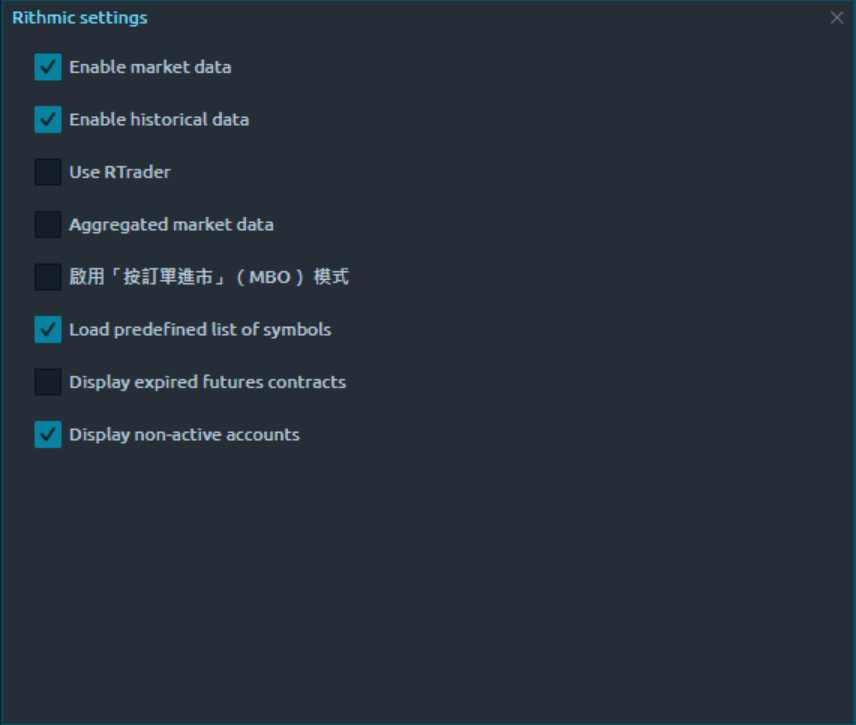
Open Connection settings. Enable market data for live quotes and historical data for earlier chart bars. For one direct Quantower session, leave Use RTrader disabled. Click Connect and inspect the account selector. If several accounts share one login, select the intended account explicitly before opening an order ticket.

Lucid lists Quantower among its Rithmic platforms. Tradeify also places Quantower on its Rithmic route. A Tradovate password from either route does not become a Rithmic password because the trader owns both applications. If you are still choosing a connection, the Rithmic vs Tradovate comparison explains how the required trading app changes that decision.
Tradeify's current Quantower instructions require enabling Use beta version in General Settings, refreshing the platform and restarting before choosing its Tradeify server. Follow that company-specific setup when the server is missing. A server-list problem calls for checking the supported build; trying unrelated servers creates another source of confusion.
Direct connection and RTrader plugin mode
A direct connection lets Quantower communicate with Rithmic without using R|Trader Pro as the bridge. It is a simple starting point when you need one platform. Keep other applications using that same login disconnected while establishing it. Repeatedly opening a second direct session can cause a login conflict instead of providing a backup.
Plugin mode introduces another dependency. The R Trader Pro login guide explains its Orders and Market Data fields before you configure Quantower’s side. Launch R|Trader Pro, select the issued credentials and server, enable Allow Plugins and complete its login. In Quantower, use the same credentials and server with Use RTrader enabled. R|Trader Pro must remain available for this arrangement. An enabled checkbox in Quantower cannot supply a bridge to an application that is closed.
Changing modes works best as a deliberate switch. Finish managing any open exposure through the existing connection first. Then disconnect, configure the chosen route and verify account visibility again. Switching modes during an unresolved position problem can remove the interface you were using to inspect it.
There are two separate limits to consider. Rithmic session permissions govern access through the trading login. Quantower's software license governs features such as simultaneous connections inside the application. Paying for a software feature does not automatically grant a second market-data session, and enabling plugin mode does not upgrade the Quantower license.
If a provider has a dedicated platform build, check that build's instructions. AMP's exclusive free Quantower version is designed for its CQG connection; its Rithmic guidance requires a suitable license from Quantower. That restriction belongs to the AMP edition. It does not replace the general Quantower license table for every other Rithmic account.
Know which part of the setup costs money
Quantower's general free license permits one broker or data-feed connection, chart trading, DOM Trader, Time & Sales and multiple workspaces. The published limits include two indicators per chart and one chart overlay. Copy Trading is listed as a free feature, while simultaneous connections and advanced analysis features have separate licensing requirements.
The All-in-One license is currently displayed at $70 for one month. The license price excludes third-party market data. Use the actual billing period when comparing a longer subscription; a monthly equivalent and a monthly payment are different amounts. Start with the functionality you need rather than treating a full license as a prerequisite for seeing a basic chart.
| Layer | What it controls | Where to verify it |
|---|---|---|
| Quantower license | Panels, indicators, analysis tools and simultaneous connections | Quantower license and feature list |
| Rithmic data and sessions | Quotes, exchange depth, history permissions and login access | Issued connection and provider's data plan |
| Trading account rules | Position limits, drawdown, permitted copying and trading hours | The firm's rules for that account and stage |
Suppose a chart updates but the DOM shows only the best bid and ask. Buying a larger software package is not a diagnosis. First establish whether the issued account includes depth data. Tradeify currently includes Level 1 CME data on its Rithmic accounts and says Level 2 depth cannot yet be purchased on that route. Another company's Rithmic account needs its own entitlement check.
Advanced displays can make an entitlement gap look like a platform setting problem. A DOM Surface license makes the panel available; it does not create an exchange subscription. Keep that distinction in mind before spending money to solve missing depth.
Find the next check from the symptom
Select the route you configured and the symptom you can actually observe. The worksheet suggests a first check. It cannot inspect your credentials, determine whether a server is down or approve an account for trading. No passwords or account identifiers are needed.
Rithmic connection first-check worksheet
This worksheet gives a next check, not a confirmed cause. It cannot inspect account access or verify order protection. Manage existing exposure through your established supported route.
For example, consider a trader who enables Use RTrader in Quantower, closes R|Trader Pro, then receives a connection failure. The selected mode depends on the closed program. Restoring the bridge or deliberately returning to a direct setup is a more useful next step than buying another evaluation.
Consider a different case: quotes are moving, an account is visible, but a rejected order appears in the log. That has passed more of the connection process. Read the rejection and verify that account's status, quantity and instrument permission. A login reset cannot establish that an order fits the firm's limits.
One symptom can have more than one cause. Save the exact message and time before changing settings. A short record of the connection, selected server, affected contract and whether the problem also appears in R|Trader Pro helps support distinguish a platform issue from an account or data issue.
Market Data Connection Failed, missing accounts and login conflicts
For Market Data Connection Failed, first compare the trading credentials and server with the issuing dashboard. Check whether required data agreements have been completed through the provider's normal process. New access can also need activation time; another successful login is more informative than a timer alone.
Then inspect the chosen route. In direct mode, close competing sessions using that login. In plugin mode, confirm that R|Trader Pro is running with Allow Plugins and that both programs use the same credentials and server. Keep account activation, software licensing and concurrent-session permissions as separate checks.
A No handle message can indicate that the login is already active elsewhere. Work through the known devices and applications using that login, rather than changing several unrelated settings at once. After resolving the conflict, reconnect once and inspect the result.
If the account list is empty, return to the issuing dashboard and establish whether the account is active and belongs to these credentials. A new login, reset account or different provider can change what should be visible. A stale workspace selector is not evidence that the intended account has disappeared permanently.
An Only Admins Can Place Trades or other permission rejection requires the account provider's explanation. Capture the actual message and check account status. The same text should not be turned into a universal liquidation time or a diagnosis that every company uses the same breach rule.
Open the correct contract and check live versus historical data
After connecting, open a Chart and choose the contract from the Rithmic connection. If a default demonstration feed is still open, confirm the connection attached to the chart itself. The name on the chart and the account on the order ticket should describe the setup you intend to use.
For NQ or MNQ, choose the current dated contract you intend to trade, with the exchange and expiry visible. A continuous analytical symbol and a dated execution contract have different roles. When comparing the chart with another platform, match the contract, timeframe and trading-session settings before judging a price difference.
Live quotes and historical bars also answer different questions. If current prices move but earlier bars are blank, inspect historical-data settings and Event Log. If neither program receives the requested history for the same dated contract, take that evidence to the data provider. Repeatedly reloading months of tick history can consume download allowances without fixing an entitlement problem.
Reload history (server) is useful for a specific gap when the connection and permission are correct. Use it for the affected chart, then examine the result. A history refresh does not repair a disabled trading account, and an old contract with little activity can remain quiet after a successful reload.
DOM, Level 2 and MBO are separate checks
DOM Trader is the price ladder used to inspect available quotes and manage orders. Level 2 describes depth beyond the best bid and ask. MBO, or Market by Order, exposes individual orders within supported depth data. These terms are related, but selecting an MBO display option is not the same as subscribing to that information.
When the connection and subscription support it, enable MBO in Connection settings. Quantower's documented display path continues in DOM Trader settings: Columns, the Bid/Ask column settings, then the MBO size-coloring scheme. Start with ordinary depth visibility before adding filters that can hide small orders.
If depth is missing, compare the same instrument in R|Trader Pro's Order Book. Missing depth there points toward the subscription or provider rather than a Quantower color preference. If the data is present there, examine the connection, instrument and DOM settings in Quantower.
Resting orders can change or disappear. Use the ladder as a view of current displayed liquidity, alongside the actual order and position records. A large displayed quantity is not a commitment that it will stay available when your order reaches that price.
Check the order ticket before using chart shortcuts
Open the main menu's Trading section and select OE for the standalone Order Entry panel. Choose the account and symbol first, then quantity, side, order type and time in force. Chart and DOM sidebars have their own settings, so checking one panel does not establish that every other ticket is configured identically.
Keep Confirm order placement enabled while learning the workspace. Read the confirmation's account, contract, side, quantity and protection prices before submitting. A chart shortcut can bypass the slower review you intended, particularly when mouse trading or a hotkey is already active.
Use an independent practice environment to verify order entry, cancellation and exits. A prop evaluation can still incur fees or breaches while its trading capital is simulated. A limit placed away from the market can also fill if the market moves; it is a real working instruction in that environment.
Moving between NQ and MNQ deserves another quantity check. As a constructed risk example, a 20-point move equals $400 per NQ contract or $40 per MNQ contract, before commissions and slippage. Matching direction and chart shape do not make the two positions financially equivalent. Keep separate templates when they help prevent carrying the previous instrument's quantity into the next ticket.
After a practice submission, inspect Working orders for the accepted instruction. After a fill, inspect Positions and the protective orders. After cancellation or an exit, verify what remains. An animation, button press or chart line is a starting point for the check; the returned order state tells you what happened.
Verify brackets and distinguish Local SL/TP
The chart sidebar can provide SIMPLE bracket controls with separate SL and TP settings. Configure the distance or price, read its unit and verify the resulting order prices. One tick, one point and one dollar are different inputs. A correct-looking number can create a very different protective distance when the unit changes.
Use a dedicated practice account to observe when protection becomes active after the parent order fills. Inspect the resulting working orders, their side and quantity. Repeat after a partial exit or a manual modification. The test is whether the remaining position has the protection you intended, rather than whether the original template contained a stop.
Quantower also has a separate placing strategy named Local SL/TP. It runs on the local machine and labels its orders Local. Closing the platform or losing the relevant connection deletes those local strategies; reconnection does not restore them. Identify that mode explicitly before deciding what can remain protected when the application stops.
Native broker-managed orders and local automation have different dependencies. Check the exact connection's order behavior and the accepted order records. A stop order can still experience slippage, rejection or a fill that differs from its trigger. A stop-limit adds a limit condition that can leave it unfilled after triggering.
Keep the positions and order panels visible while learning. Before ending a practice session, reconcile the account's position, remaining working orders and any local strategy. Saving the workspace preserves a layout; it does not close exposure or turn a local strategy into a server-managed order.
Save a workspace that makes the account obvious
A small workspace can contain a chart, Order Entry, DOM Trader, Positions, Working orders and Event Log. Give it a name that identifies the provider and instrument. Place the account selector where you can read it without opening a hidden panel.
Color-link a chart and order panel when you want their symbols to change together. Then verify the account separately. Symbol linking solves one kind of mismatch; it should not be assumed to synchronize every trading parameter in every panel.
Save after arranging the layout and after changing templates. On the next launch, check the connection, account and contract before relying on the saved screen. A restored layout can contain an expired contract, an older account selection or a previously used quantity.
Adding copy trading without confusing the connection
Several accounts listed under one Rithmic login are different from several simultaneous provider connections. The first arrangement can fit within the general free license's single connection. Cross-login or cross-service setups need an independent check of licensing, session permissions and copying rules.
For a copy group, identify the Parent account and each Child account explicitly. Verify the instrument mapping, quantities and actual exit behavior in a practice environment. Starting a copier is not proof that every follower accepted an instruction; each account can have a different position limit or account status.
The Tradeify copy trading guide covers that company's platform routes and exit checks. The Lucid copy trading guide handles Lucid's account-specific setup. Use those rules alongside the connection steps here.
A local copier requires its application to keep operating. Stop means stop subsequent copying, which is a different action from flattening each account and cancelling its orders. At the end of a session, inspect every account rather than assuming the parent panel represents the whole group.

Compare HDP discounts
Lucid 30% · Tradeify 30% · TPT 50%.
See current offers ↗Eligible partner plans only.
Quantower Rithmic questions
Is Quantower free with Rithmic?
The general free version supports one connection and basic trading features. Your provider's platform edition, market-data permissions and optional features can have separate requirements.
Do I need RTrader Pro open?
For a direct Quantower connection, it is not the bridge. In Use RTrader plugin mode, R|Trader Pro must be running with Allow Plugins and the matching login and server.
Which server should I select?
Use the server issued for your actual account. A paper server shown in a screenshot is not the correct setting for every simulated prop firm account.
Can I use my prop firm's website password?
Use its issued Rithmic trading credentials. The username and password used for the purchase dashboard can be different.
Why is Tradeify missing from the server list?
Tradeify's current setup guide requires the beta build. Enable Use beta version, refresh and restart, then follow its Rithmic server instructions.
Does All-in-One include exchange data?
No. Quantower's license and third-party market data are separate. Check the entitlement supplied by your broker or prop account.
Why does the chart work but the DOM lack depth?
The connection can provide Level 1 without Level 2. Compare the same instrument in R|Trader Pro's Order Book and check the provider's depth entitlement.
Does enabling MBO buy Level 2 data?
No. MBO needs supported data and the relevant connection settings. A display checkbox cannot create a market-data subscription.
What does No handle mean?
A conflicting session is one documented cause. Check other devices and applications using that login, then reconnect through the chosen direct or plugin route.
Why do current prices work but old bars fail to load?
Check historical-data settings, the dated contract and Event Log. History permissions or download limits can differ from real-time access.
Can Quantower run directly on macOS?
The desktop download is for Windows 10/11 64-bit. A Windows virtual-machine arrangement is separate from a native macOS application and needs its own compatibility checks.
Will Local SL/TP survive a disconnect?
No. Quantower documents that losing the connection deletes the associated local strategies. Reconnecting does not restore those local orders.
Can I use Quantower's free Copy Trading feature?
The feature is listed in the free license. Simultaneous connections, data sessions and the firm's permission remain separate checks; verify the actual parent and followers.
Does a green connection mean my account can trade?
No. Confirm the issued account is active, the correct symbol is selected and returned orders are accepted. Read any rejection and contact the account provider when permission is unclear.