

To connect Lucid Trading to TradingView, use a Lucid account on the CQG/Tradovate route, finish the first login at trader.tradovate.com on a computer, then open TradingView’s Trade menu and select Tradovate. For an evaluation or simulated funded account, choose Demo and enter the trading credentials issued by Lucid. Your Lucid website login and your TradingView login serve different purposes.
The point where the connection fails matters. A rejected password, a missing Lucid account, a market-data warning and a non-tradable symbol require different checks. Buying a TradingView subscription does not resolve every one of those problems. Use the connection checker below to find the relevant step without entering any account details.
This setup covers Lucid evaluations and simulated funded accounts using Tradovate. A Rithmic account follows a different connection route. If Lucid has moved you into a genuine live brokerage account, follow that account’s live onboarding instructions instead of applying the Demo steps automatically. The Lucid Trading review covers the programs and account rules; this page focuses on getting an existing compatible account connected.
Find the next connection check
Choose the connection route shown in your Lucid account information, your account stage and the symptom you can see. If you cannot identify the route or account stage, select “Not sure.” The result points to a section of this guide. It does not test your credentials, check your Lucid account or connect a broker.
Keep the error message open while working through the result. Check one layer at a time: the issued credentials, the simulation or live environment, the account selected in the broker panel, then the chart and order settings. Changing all four at once makes it harder to identify what fixed the problem.
Which username and password does TradingView need?
You can have three valid logins and still enter the wrong one at the broker prompt. The Lucid website identifies you as a customer. The trading credentials identify the platform connection supplied with your account. TradingView has its own sign-in for charts, layouts and subscriptions.
| Screen | Credentials to use | What this gives you |
|---|---|---|
| Lucid website or dashboard | Your Lucid customer login | Account management and the information Lucid supplies for your trading account |
| Tradovate, including its TradingView connection | The platform username and password issued by Lucid for the Tradovate route | Access to the Lucid trading accounts attached to those credentials |
| TradingView website or app | Your separate TradingView login | Charts, saved layouts and the broker connection interface |
Start with the platform details supplied for the specific Lucid account you want to use. A retail Tradovate login you created separately does not acquire your Lucid evaluation merely because both use Tradovate. A successful login to that retail account can leave you looking at the wrong account list.
The same distinction applies to Rithmic. Having a Lucid account does not mean every supported connection accepts the same username. If your supplied credentials identify Rithmic, establish which Lucid connection you have before trying Tradovate. The Rithmic versus Tradovate connection guide explains the platform choice and its consequences.
A TradingView-style chart inside another platform is also a separate question from connecting the standalone TradingView website or app to Tradovate. Look for the actual platform and connection name in your Lucid account details, rather than identifying the route from the appearance of the chart.
Complete the first Tradovate login on a computer
Before starting in TradingView, open a desktop or laptop browser and go to trader.tradovate.com. Tradovate’s first-login process includes the market-data certification and agreements needed for the connection. Starting with the mobile app can leave that initial setup unfinished.
- Enter the Tradovate trading username and password issued by Lucid. Match the credentials to the account information you received.
- Review the Market Data Subscriber Certification. Choose the subscriber status that matches the definitions and your actual circumstances.
- Complete the requested information and personally review and sign the applicable agreements. Use the name required by the agreement.
- Accept the platform agreement if it is presented, then enter the Simulation environment for an evaluation or simulated funded account.
- Confirm that the intended Lucid account appears in the account selector before moving to TradingView.
Subscriber status is not a preference to select for a lower fee. Tradovate states that the status is locked after signing and a prop-firm user must contact the provider to change it. Resolve uncertainty before submitting the certification. A professional designation, incorrect name or unfinished agreement can affect access to market data.
If the agreement rejects a name containing accented characters, ask Lucid to resolve the provider-side record rather than entering an unrelated name to get past the screen. Identity information should remain consistent with your account. The prop-firm KYC guide covers the separate identity-verification process; passing KYC does not replace the platform’s subscriber certification.
At this stage, success means that the supplied credentials work in Tradovate and the correct account is visible in Simulation. You have established the account connection independently of the TradingView chart. If the account is already missing here, address that with Lucid before spending time changing TradingView settings.
Connect Lucid Trading to TradingView through Tradovate
Open TradingView and sign in to your own TradingView account. Then open a chart. The current connection entry is the Trade button at the top right. Open it to view the available broker connections.
- Click Trade to open the broker list.
- Search for Tradovate and open its broker card.
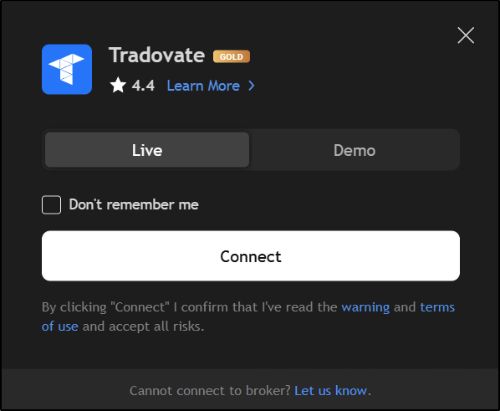
- For a Lucid evaluation or simulated funded account, select Demo in the Tradovate connection window.
- Click Connect, review the connection information and use the Lucid-issued Tradovate username and password at the Tradovate login screen.
- After the connection returns to TradingView, open the broker account selector and choose the intended Lucid account.
The Demo selection describes the connection environment. It does not turn your evaluation into TradingView’s separate Paper Trading account, and it does not mean that a simulated funded account should use the Live tab. Use Live only for a genuinely live brokerage account with the corresponding onboarding and credentials.
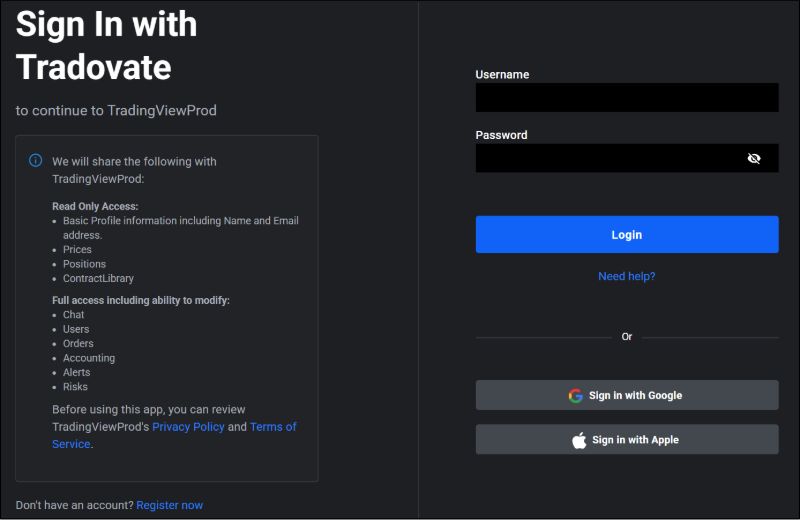
On the Tradovate sign-in screen, use the supplied platform credentials. A Google or Apple sign-in option on a login page is not a substitute for identifying which credentials contain your Lucid account. If you reach an empty account list through a different identity, return to the credentials issued for the Lucid connection.
Once connected, check the broker name and account selector before interacting with an order ticket. A chart can remain open while you change brokers or accounts. The symbol displayed on the chart alone does not tell you which account an order ticket will use.
Verify the account without placing a trade
Read the account identifier in the Tradovate broker panel and compare it with the Lucid account information. Then confirm that its stage and environment match your intended evaluation or simulated funded account. You do not need to submit an order merely to check these labels.
TradingView Paper Trading is its own simulator. If that is the selected broker, the panel is not showing the Lucid Tradovate account. Likewise, a connected Tradovate session can show a different account if several accounts share the login. Select the specific account rather than assuming that the first visible entry is the one you intended.
Use the order panel as a final configuration check: the selected account, the exact futures contract and expiry, quantity and any attached exits should all match your plan. Seeing the right chart and seeing the right order destination are two separate checks. An existing position or working order also needs attention before you disconnect or change environments.
If Tradovate Simulation shows the Lucid account but TradingView does not, record that distinction for support. It narrows the issue to the TradingView connection or account availability there. If neither platform shows it, Lucid needs to investigate the provider-side account or access rather than a chart layout.
Fix entitlement errors and missing market data
For prop-firm and evaluation accounts, TradingView access is managed by the prop firm. Tradovate’s current prop-firm instructions say these users do not purchase the standalone TradingView add-on. The absence of a Buy option in the retail add-on screen can therefore be expected.
If you receive an entitlement or access error, confirm the connection route, first-login agreements and account status, then ask Lucid to check TradingView access for the supplied account. Buying a separate retail add-on or opening another retail Tradovate account does not attach the existing Lucid account to that identity.
There are three separate questions behind a working chart: does TradingView offer the interface feature you want; does the connected broker account have the necessary market-data access; and may that account trade this contract? A paid chart subscription answers only part of that picture.
A TradingView market-data subscription does not grant trading permission to a Tradovate account. Conversely, Tradovate market-data entitlements can apply to TradingView charts when the broker is connected. Verify the connected account and its data entitlement before purchasing another subscription to fix a delayed-data warning.
Tradovate advises allowing up to five minutes for a new or updated market-data subscription to take effect. That timing applies to the data-subscription change; it is not a promise that a newly purchased Lucid account, a missing trading account or an access error will resolve in five minutes.
For a persistent data problem, capture the exact symbol and exchange, the visible data warning, the connection environment and whether the same account receives data in Tradovate. Data obtained through one provider does not automatically authorize orders through a different provider’s account. A clear description of the two states is more useful than repeatedly switching subscriptions.
Your trading costs are another separate layer. A successful broker connection does not remove commissions. Use the Lucid commission table and calculator to estimate per-contract trading costs once you know the contract you intend to use.
Choose a tradable futures contract
A continuous chart and a dated futures contract are related but not identical. For eligible CME futures, TradingView supports trading a 1! continuous contract through the front contract shown in the order ticket. Check that destination contract and expiry rather than assuming the continuous label is the complete order specification.
A 2! continuous contract is for analysis and is not tradable through this feature. If you receive “non-tradable symbol,” inspect the exchange, symbol type and contract before changing passwords. You can select the appropriate dated futures contract supported by your account and confirm the exact contract in the order ticket.
Permission still matters. Finding a symbol in TradingView search does not establish that Lucid supports that product or that your account has the relevant exchange access. Match the symbol to the current Lucid product permissions and your broker account. A CFD or an index feed with a familiar name is not interchangeable with the corresponding futures contract.
For example, someone analyzing an eligible CME 1! chart should inspect the front contract that the ticket will route to. Someone analyzing a 2! chart needs a tradable contract selection before proceeding. Neither case is resolved by changing the account from Demo to Live.
Set take-profit and stop-loss with the entry order
Tradovate’s TradingView integration supports attaching take-profit and stop-loss orders to the parent entry through the Order Panel. Configure the entry and the attached exits before placing that parent order. Check the quantity and price levels as part of the same ticket review.
The integration does not support adding an attached TP/SL bracket to an entry that has already been submitted or to an existing open position. Already attached levels can be modified on the chart. That distinction explains why dragging an existing bracket can work while trying to add a new bracket after entry does not.
The chart’s quick Buy/Sell buttons are a different interaction from preparing a bracketed entry in the Order Panel. If attached exits are part of your intended setup, open and inspect the full panel before entry. The presence of a general chart-order control does not establish that the intended exits are attached.
A stop order also does not guarantee a particular execution price. Connection quality, market conditions and the order type affect what can happen after submission. Review the actual working orders in the broker panel instead of treating a drawn level or a completed chart annotation as proof that an exit order exists.
Use mobile charts and understand copy-trading limits
Complete the first Tradovate certification and agreements in a desktop or laptop browser. After that, the TradingView mobile app has a broker connection path: open Chart, tap Trade and open the broker card. Use Show All or the broker search if Tradovate is not immediately visible.
Apply the same account distinction on mobile: a Lucid evaluation or simulated funded Tradovate account uses the appropriate Demo connection and the issued trading credentials. Check the account selector again after connecting. A saved chart layout on your phone does not prove that the correct broker account is selected there.
Tradovate Group Trade is available through Tradovate’s supported web and desktop interfaces, not through TradingView, the mobile app or NinjaTrader Desktop. Connecting several Lucid accounts to a login therefore does not make TradingView a built-in group-order copier.
If your goal is to send matching orders to multiple accounts, make that a separate setup decision. The prop-firm copy-trading guide covers account permissions and copier choices. Confirm Lucid’s current rules and the particular copier’s supported connections before using multiple accounts; a successful single-account TradingView connection establishes neither of those points.
Who should fix a failed Lucid TradingView connection?
Contact Lucid for provider-issued passwords, a missing Lucid account, expired access, account-specific trading issues or TradingView entitlements managed by the firm. Tradovate can help with an initial connection problem, but it cannot reset a prop firm’s issued credentials or enable access that the provider controls.
For a TradingView interface issue, describe the chart or broker-panel control involved. Separate “the broker will not accept my login” from “I can connect but the symbol is non-tradable.” The second report already establishes that authentication got further than the first.
A useful private support message identifies the connection route, whether this is an evaluation, simulated funded or genuinely live account, the selected environment, the exact error text and whether the same account works in Tradovate. Include the time and time zone if the failure is intermittent. Send any account identifier only through the firm’s private support channel, and keep passwords out of the message.
If you attach a screenshot, crop or mask unrelated account information, personal details and other open tabs. Show the error and enough of the broker or symbol context to explain it. A screenshot of a chart without the error or selected broker can leave support unable to distinguish a data issue from an account issue.

Lucid discount code
Check the current price for your selected plan.
View Lucid pricing ↗Compare plansPartner link · Plan terms apply.
Lucid TradingView connection FAQ
Can I use Lucid Trading with TradingView?
Yes, through Lucid’s supported CQG/Tradovate route. Complete the first Tradovate desktop-browser login, then connect Tradovate inside TradingView using Lucid-issued trading credentials. Rithmic credentials do not use that Tradovate login path.
Do I need to open my own retail Tradovate account?
Use the Tradovate trading credentials issued for your Lucid account. A separately created retail Tradovate login does not contain your Lucid evaluation simply because it uses the same platform.
Should I select Demo or Live for a Lucid funded account?
Use Demo for an evaluation or simulated funded Tradovate account. A genuinely live brokerage account follows its separate live onboarding. The word funded alone does not identify the connection environment.
Which password goes into the Tradovate connection?
Use the platform password Lucid issued for that Tradovate connection, together with its platform username. Your Lucid customer login and your separate TradingView login serve different screens.
Do I have to buy Tradovate’s $9.99 TradingView add-on?
Tradovate’s current prop-firm instructions say prop-firm and evaluation access is managed by the provider, and those users do not purchase the standalone add-on. Ask Lucid to check account entitlement if access is missing.
Which paid TradingView plan does Lucid require?
Choose a TradingView plan for the chart features you need. Broker access and market-data entitlement are separate requirements. A paid chart plan alone does not enable a Lucid Tradovate account or resolve a provider-side entitlement error.
Why does my Lucid account not appear after login?
Check that you used the Lucid-issued Tradovate credentials and selected the correct environment. Compare the account list in Tradovate Simulation with TradingView. If the account is missing in Tradovate too, contact Lucid about its availability.
Why is the TradingView entitlement or Buy option missing?
Provider-managed prop-firm access does not follow the retail add-on purchase flow. A missing Buy option can be expected. Complete initial agreements and ask Lucid to verify TradingView entitlement for the supplied account.
Does paying for TradingView data enable Tradovate orders?
No. A TradingView chart-data subscription does not grant order permissions to the connected Tradovate account. Check the broker account’s data and trading access separately; Tradovate data can apply to connected TradingView charts.
Can I trade ES1! or NQ1! through TradingView?
Eligible CME 1! continuous futures can route to the front contract displayed in the order ticket. Verify that contract, expiry and your account permissions. A 2! continuous contract is for analysis and is not tradable through this feature.
Can I add take-profit and stop-loss after entering a trade?
For the Tradovate integration, configure attached TP/SL orders with the parent entry through the Order Panel. You cannot add an attached bracket to an already submitted parent or existing position; you can modify levels of brackets that are already attached.
Can I connect from the TradingView mobile app?
Complete the initial Tradovate certification on a computer first. In TradingView mobile, open Chart, tap Trade and choose the broker card, using Show All or search if necessary. Confirm the intended Lucid account after connecting.
Does Tradovate Group Trade work inside TradingView?
No. Group Trade uses Tradovate’s supported web and desktop interfaces. It is not available through TradingView, the mobile app or NinjaTrader Desktop. Multi-account copying needs its own supported setup and rule check.
Who can reset my Lucid platform credentials?
Contact Lucid for provider-issued credentials and account access. Tradovate cannot reset a prop firm’s credentials or enable provider-managed entitlements. Send exact error text privately without including passwords.