
FundedNext MT5 uses a trading account number, a trading password and an assigned server. Get those three details from your FundedNext account page or credential email, then connect through MetaTrader 5 on your computer or phone.
This is the CFD account setup. FundedNext Futures uses a different platform route. US CFD clients use Match-Trader rather than MT5, so check the platform available for your registration before installing or purchasing an account.
繁體中文:FundedNext MT5 下載與登入教學. For CFD plan and payout rules, see the FundedNext review in Traditional Chinese.
FundedNext MT5 downloads for each device
Start from MetaQuotes’ official MT5 download page or the Utilities section of your FundedNext dashboard. Choose the version for your device. Installing MT5 gives you the software; your issued trading credentials connect the FundedNext account.
| Device | Download or access route |
|---|---|
| Windows | Choose For Windows on the official MT5 download page, or MT5 for Windows in FundedNext Utilities. |
| Mac | Choose Download for macOS on the official MT5 download page. Follow the current macOS installation instructions. |
| iPhone / iPad | Install MetaTrader 5 from the App Store. |
| Android | Install MetaTrader 5 from Google Play. MetaQuotes also lists its own alternative Android downloads. |
| Browser, without installation | Open Trading Platform in the FundedNext dashboard and use its MT5 Trading Terminal entry. |
For mobile MT5, check that the app publisher is MetaQuotes. Follow the links from the official download page or FundedNext, especially if searching for “FundedNext app download” or an APK. A similar app name or logo alone does not establish which software the issued account uses.
The company dashboard and the trading app have different jobs. Your website email opens FundedNext’s dashboard, where you manage the account. The MT5 app connects to the trading server using the credentials supplied for that account.
Find Login, trading Password and Server
Open the Accounts section in your FundedNext dashboard and select the account you intend to use. Copy its numeric Login, trading password and full Server name. Match all three to that one account, especially when you have several trials or paid accounts.
Use the trading/master password for order-enabled access. An investor password provides read-only access: you may see the account and prices while trading remains unavailable. MetaQuotes explains the two access modes in its account connection guide.
Which FundedNext MT5 server should you choose?
Use the full server name in your credential email or account details. FundedNext’s current PC and mobile walkthroughs make this distinction:
| Server | Account use |
|---|---|
| FundedNext-Server | Paid CFD accounts assigned to this server. |
| FundedNext-Server 2 | Paid CFD accounts assigned to Server 2. |
| FundedNext-Server 3 | Free Trial and Free Monthly Competition accounts. |
Server 2 is an account assignment, not a label for the second challenge phase. Server 3 is the free-account route described above, not the next server to try after a paid login fails. If the dashboard says FundedNext-Server 2, select that exact entry.
Connect FundedNext MT5 on Windows or Mac
Install the official version for your operating system and review the installation prompts yourself. Open MT5, choose File → Open an Account, and search for FundedNext. Select the company result and continue to the account options.
Choose Connect with an existing trade account. FundedNext has already issued the account; this connects that account rather than creating another one inside MT5. Fill Login and Password, select the assigned Server, then choose Finish.
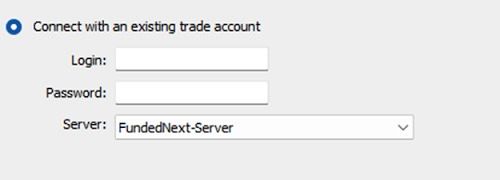
The official PC walkthrough shows the menus and connection window:
If MT5 already contains accounts from another company, add the FundedNext account through this same connection route. Check which account is selected before using order controls. A chart layout can remain familiar while the selected trading account has changed.
Log in on iPhone, iPad or Android
Open MetaTrader 5 and find the account-management screen. The menu position varies between iOS and Android; look for Add Trading Account or the + account control. Choose the existing-account login route.
Search for FundedNext and select FundedNext Ltd. Choose your assigned server, enter the numeric Login and trading password, and tap Sign In. Keep password saving off on a shared device.
After connection, the Trade screen shows account information such as Balance, Equity and Free Margin. Match the selected Login to the account you opened in the dashboard. During an active trading session, check the relevant quotes too; a saved account name alone is not evidence of a current connection.
The official mobile walkthrough shows the phone screens:
Use the FundedNext MT5 Web Terminal
For browser access, sign in to the FundedNext dashboard and open Trading Platform. Use the MT5 Trading Terminal entry and the selected account’s trading credentials. FundedNext’s Web Terminal instructions describe this route.
This is also a useful comparison when a device cannot connect. If the same account works through its web entry, investigate the local app, connection and saved details. If both routes reject it, check account status and credentials with support. That comparison narrows the problem without placing a test trade.
Authorization Failed, read-only access or missing symbols
For Authorization Failed, reopen the selected account in the dashboard. Check its status, then compare the exact Server, Login and trading password with the values entered in MT5. Copying the details from the same account avoids mixing one account’s Login with another account’s server.
If you can view the account but cannot use trading functions, check the password mode. An investor password is read-only. Use the account’s trading password for full access, then check any remaining account or instrument restrictions. MT5’s Algo Trading switch does not repair an incorrect login or change a read-only password into a trading password.
For connection failures after the credentials are checked, close and reopen the app and test another normal network connection. FundedNext’s mobile troubleshooting also suggests removing and re-adding the account. Confirm that you can retrieve its credentials before removing the saved entry.
If a symbol is absent, check the account’s available instruments. On desktop, Market Watch’s Show All command reveals the available list. On mobile, add the instrument through Quotes. Check the actual symbol and its specification rather than copying another firm’s symbol or trade size.
Before an order, confirm the selected account, instrument and trade size. Market hours, account permissions and the correct password still matter after installation. The MT5 tutorial in Traditional Chinese covers order controls and the surrounding platform settings.
MT5 features and FundedNext account permission
FundedNext’s EA policy permits eligible MT4/MT5 accounts below $50,000 to use EAs under its conditions and with the applicable paid add-on. Accounts of $50,000 and above must trade manually, including tools that only modify stop-loss, take-profit or lot-size parameters. Check this before installing a trade manager or automation tool.
For CFD accounts, TradingView currently serves analysis rather than direct execution. Use the platform assigned to the CFD account for orders. If your purchase is a Futures account, follow the FundedNext Futures platform and account guide; its Tradovate, NinjaTrader and TradingView route has different credentials.
FundedNext MT5 questions
Where can I download FundedNext MT5?
Use FundedNext Utilities or MetaQuotes’ official download page. Choose the version for your operating system, then connect the issued account.
Is MT5 a separate paid download?
MetaQuotes offers the platform download free. A FundedNext challenge purchase and any applicable account add-ons are separate items.
Can I use my FundedNext website email to log in to MT5?
Use the numeric trading Login, trading password and assigned Server. The website email opens the company dashboard.
What is FundedNext-Server 3?
It is the server listed for Free Trial and Free Monthly Competition accounts. Paid accounts use their assigned FundedNext-Server or FundedNext-Server 2 entry.
Does Server 2 mean the second challenge phase?
No. It is a server assignment. Use the full name attached to your account.
Can I use MT5 on a Mac?
MetaQuotes provides a macOS download. For browser access, use the account’s MT5 Trading Terminal entry in the FundedNext dashboard.
Which mobile app should I choose for MT5?
MetaTrader 5 from the official MetaQuotes store entry. Follow the official download links and check the publisher.
Why can I see prices but not trade?
Check whether you signed in with the investor password. It provides read-only access. Account, instrument and market restrictions can also affect trading.
Do I need to create another demo account inside MT5?
Connect the existing account issued by FundedNext. A separate demo created inside MT5 is a different account.
Can I use the same credentials on desktop and mobile?
Use the selected account’s Login, trading password and Server on the supported terminals. Check which account is active on each device.
Can US CFD clients choose MT5?
FundedNext’s CFD platform policy directs US clients to Match-Trader rather than MT5.
Does this setup apply to FundedNext Futures?
No. Futures uses its own Tradovate, NinjaTrader and TradingView route, not these MT5 credentials.
Does installing MT5 allow every EA?
No. FundedNext’s account-size, add-on and strategy conditions apply. Accounts of $50,000 and above require manual trading, including the parameter-management tools covered by the policy.