
Apex Trader Funding connects to TradingView through Tradovate. Buy the Tradovate connection, activate the issued account, then choose Demo when connecting from TradingView. Your Apex website password and your TradingView password each have a different job.
The connection lets you place manual orders on an eligible Apex account. For EOD versus Intraday, activation costs and payout conditions, see the Apex Trader Funding review.
Find the Tradovate login issued by Apex
Open your Apex welcome email or the Tradovate Account section in the Apex dashboard. Use Show Password to reveal the actual issued password before copying it. Remove any spaces accidentally copied before or after the username or password.
The native TradingView connection needs a Tradovate account. Rithmic and WealthCharts credentials belong to other connections. Apex does not transfer a PA's days, balance or history between Tradovate and Rithmic, so confirm the platform before purchasing another account.
| Sign-in screen | Credentials |
|---|---|
| Apex dashboard | Your Apex website login, used to manage the subscription and find the platform credentials |
| TradingView chart | Your TradingView login, used for chart layouts and the trading panel |
| Tradovate broker sign-in | The Tradovate username and password issued by Apex |
Complete the first Tradovate login on a computer
Use a desktop browser to open Tradovate and enter the issued credentials. Complete the requested information and review the exchange agreements. Choose the subscriber classification that accurately describes your circumstances and sign only after reading the terms.
After the agreements, data activation can take 10–90 minutes. Apex asks you to allow at least 90 minutes before opening a missing-data ticket. If the platform account itself has not arrived six hours after purchase, contact Apex through its Help Desk.
The evaluation and PA appear in Simulation. Select Start Simulated Trading to reach the workspace. A PA that can qualify for payouts still uses this simulated connection.
Enable the TradingView connection in Tradovate
In Tradovate, open Application Settings → Add-Ons. Find the TradingView card and select Activate. Log out of Tradovate and sign back in so the change takes effect.
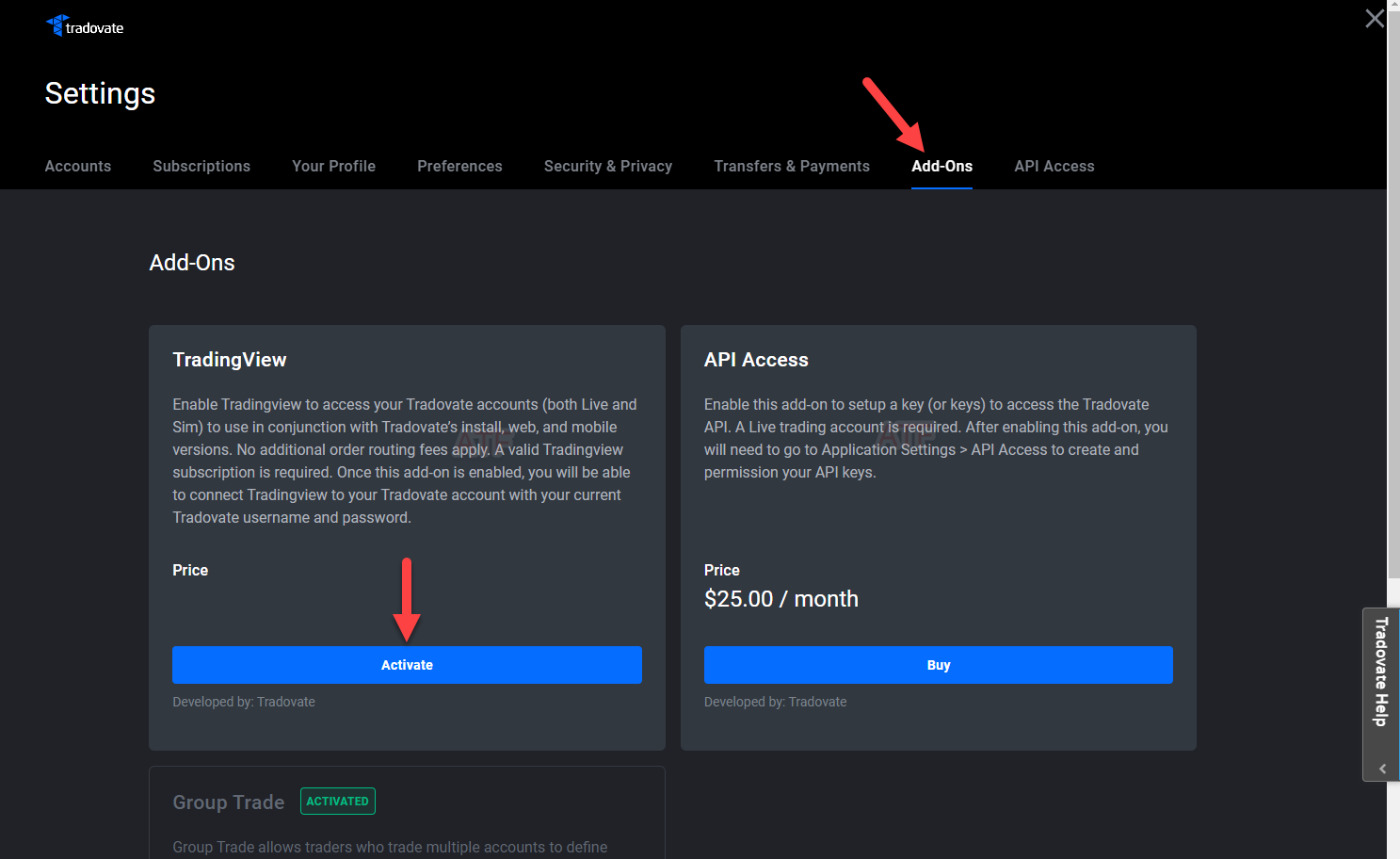
Apex includes the connection for an active, tradable Tradovate account. If the card offers a $9.99 purchase instead, check that the account has finished provisioning and ask Apex to verify the entitlement. Apex says enabling the included offer can take four hours or more. The standalone paid add-on is a separate Tradovate brokerage option; purchasing it is not the default fix for an Apex account.
Check the connection's renewal date as well. Apex requires monthly reactivation of its included TradingView access. A connection that worked last month can stop when that access expires, even while the account login still works.
Choose Tradovate and Demo in TradingView
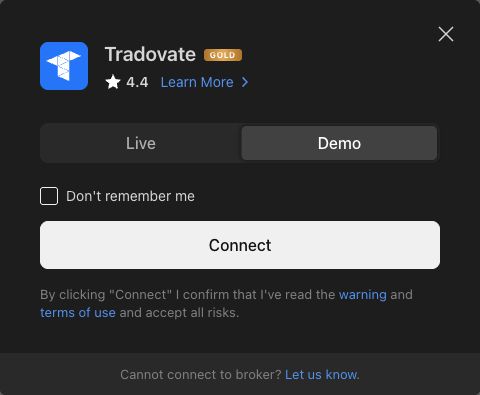
Sign into TradingView, open your chart and click Trade at the top right. Select Tradovate, choose Demo, and review the connection notice before continuing with Connect. The broker sign-in then uses the Tradovate credentials issued by Apex.
After connecting, open the account selector in the trading panel and match the selected account to the one in your Apex dashboard. TradingView's own Paper Trading account is a separate simulator. Seeing that account in the panel does not confirm that your Apex account is connected.
Check the contract, data and order panel
Load the current dated futures contract supported by the account. A continuous chart is useful for analysis, but the executable contract and expiry still need checking. A chart for a stock, spot currency pair or spot cryptocurrency does not become tradable just because Tradovate is connected.
Check the account name, contract and quantity in the order panel before submitting an order. Apex's position allowance depends on the account and stage; moving from an evaluation into a PA can change that allowance.
For attached stop-loss and take-profit orders, use TradingView's Order Panel and configure the bracket with the entry. Tradovate's connection guide distinguishes this from the chart's quick Buy/Sell buttons, which do not attach those brackets. Adding an OCO pair to an already-open position follows a different workflow, including the option to manage it from Tradovate.
Keep the native Tradovate workspace open to monitor the account balance and auto-liquidation threshold, and as a backup for managing positions. When closing a position, use its close action and then check the remaining quantity and working orders. Reverse Position changes the direction; it is a different action from closing to zero.
Separate chart data from permission to trade
A moving chart confirms only part of the setup. The broker connection must also have the correct account, an active data entitlement and a supported contract. Buying chart data from TradingView does not supply a missing Tradovate trading permission.
Tradovate market-data subscriptions apply to the connected TradingView charts, so a separate TradingView exchange-data purchase is not required for that same entitled feed. Chart-plan features are another purchase. Apex describes its free connection offer as updating the TradingView chart every five seconds; check the refresh behavior and the chart plan's terms if you need continuous updates.
The Apex commission guide separates trading fees from software and connection costs. An included connection does not remove commission on completed trades.
Match the error to the next check
| Problem | What to check |
|---|---|
| TradingView is not entitled to access the account | Confirm the TradingView entitlement and renewal in Tradovate. Ask Apex to check the issued account's access if it remains unavailable. |
| Add-on asks for $9.99 | Allow provisioning to finish and confirm the included Apex entitlement before purchasing a standalone brokerage add-on. |
| Login works, account missing | Choose Demo and use the issued Tradovate credentials. Confirm that the relevant Apex account is active and tradable. |
| Non-tradable symbol | Check the asset type, current expiry, approved contract and active Tradovate data entitlement. |
| Order rejected for size | Compare the order and existing position with the account's current stage and contract limit. |
| Stopped working after a month | Check the TradingView connection's monthly reactivation date before resetting a working password. |
For entitlement or account-provisioning problems, send Apex the exact error and the affected connection type. For chart tools and TradingView interface questions, use TradingView support. Keep passwords and private account details out of public screenshots. The Tradovate guide in Chinese covers the surrounding workspace controls.
TradingView orders and multi-account copying
Tradovate's native Group Trade feature runs inside Tradovate. A group created there does not become a selectable TradingView group. For that workflow, use the Apex copy-trading guide.
Apex requires a personal, intentional action for each order, with specific exceptions for permitted native risk orders and copying your manually placed orders to accounts you solely own and control. A strategy alert that places an order through a Webhook is outside that manual workflow unless Apex has expressly permitted it. A third-party service's ability to connect is not evidence of permission.
Apex TradingView FAQ
Can I connect an Apex Rithmic account directly to TradingView?
The native setup uses Tradovate. Use the connection issued for the account; a Rithmic login will not work in the Tradovate broker sign-in.
Should I choose Live or Demo for an Apex PA?
Choose Demo for the evaluation or PA. A later live-stage arrangement has its own onboarding instructions.
Where is the password for the Tradovate sign-in?
Find it in the Apex welcome email or the dashboard's Tradovate Account section. Show Password reveals the issued password for copying.
Is the free add-on a paid TradingView chart plan?
No. It enables the eligible broker connection. TradingView chart-plan features and exchange-data entitlements are separate items.
Why does TradingView access need renewing?
Apex's included connection requires monthly reactivation. Check its displayed renewal date when a previously working setup stops connecting.
Do I need to deposit money into Tradovate to activate an Apex evaluation?
Follow the Apex prop-account setup in Simulation. The funded personal brokerage requirements in Tradovate's retail instructions apply to a different account type.
Can I use TradingView's Paper Trading account for my Apex evaluation?
No. That is TradingView's separate simulator. Select the account supplied through Apex's Tradovate connection.
Can I use a phone after the first setup?
Apex lists TradingView mobile among the supported access options. Complete the initial Tradovate activation in a desktop browser, then check the mobile app's broker account and order panel before trading.
Does a connected chart prove that orders can be placed?
No. Confirm the issued account, its trading status, data entitlement and the supported dated contract.
Can TradingView use the Tradovate group I created?
No. Native Group Trade is available inside Tradovate. TradingView's single-account panel does not execute that group.
Will a chart Buy or Sell button attach my bracket?
Tradovate's TradingView guide requires the entry to come from the Order Panel for attached brackets. Its chart quick Buy/Sell buttons do not enable those brackets.
Does connecting an automation service mean Apex permits the strategy?
No. Follow Apex's manual-order requirement and its stated exceptions. Compatibility with a third-party tool does not change the trading agreement.